Unhandled received connections

A connection in Mitigater is the link between products — showing how items are combined, sold, or passed along in the supply chain. Each connection must be registered with the article numbers of the products involved.


1. A connection explained

In Mitigater, a connection represents the link between two products.

A connection explained

For example, a chair is connected to the wood it is made from.

A connection explained 2

A single product can have multiple connections. For instance, the same chair might also be connected to the color or paint used.

A connection explained 3

When a client sends a connection request, they suggest linking their product to one you supply. They’ve added the product they buy from you, but you need to upload and connect your actual product.

A connection explained 4

The connection isn’t complete until you confirm it.

A connection explained 5

2. Big numbers of data

This example shows you how to handle connections one by one. If you want to handle big numbers of data use our excel-import.


Click here to learn how to import many products with Excel.
Big numbers of data

3. Find your received connections

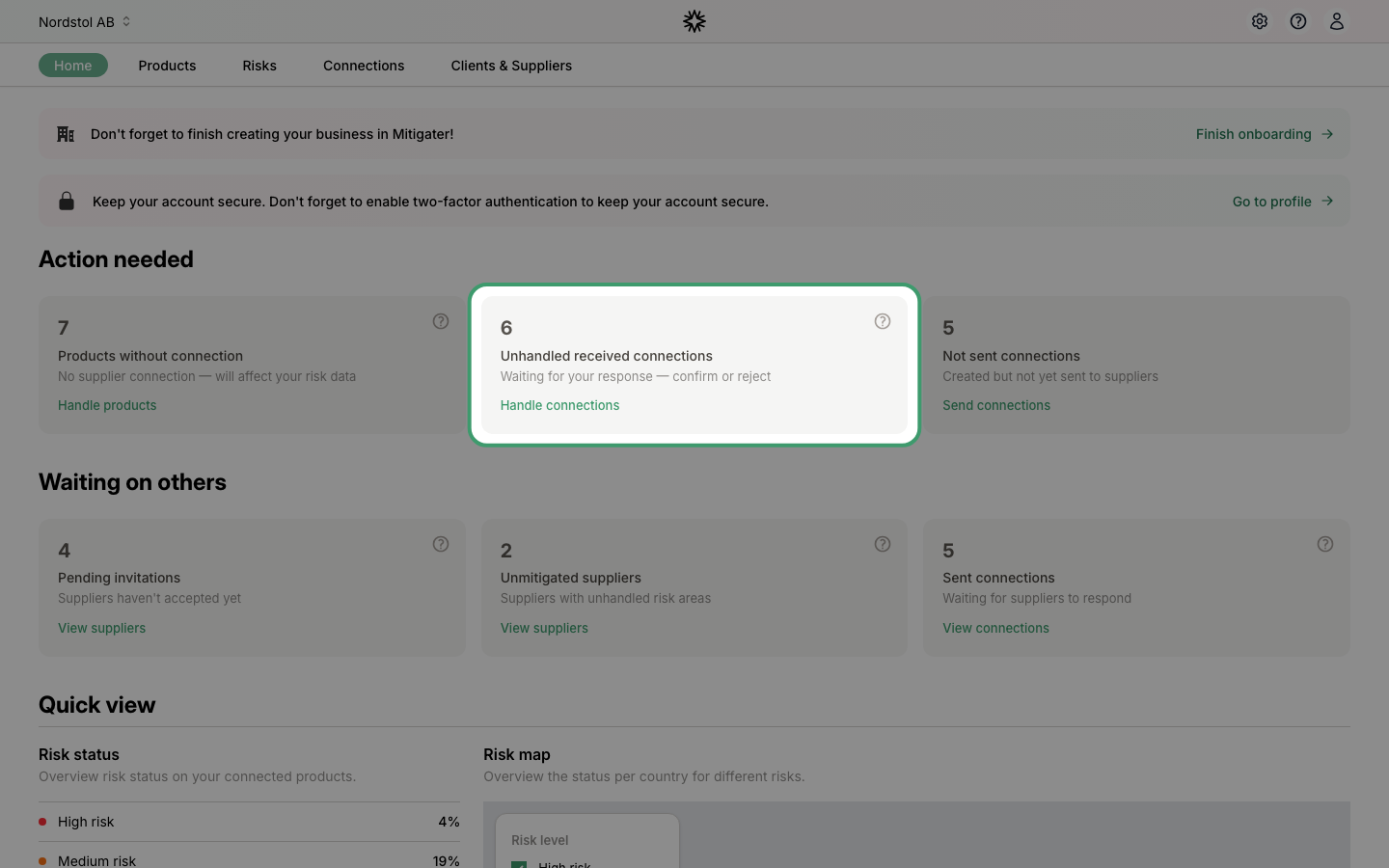
Navigate to the Home section to access your dashboard, where all important notifications and invitations are centralized. This means that you have unhandled received connections.

Find your received connections

Click "Show all received connections" for a quick way to reach all your received connections.

Navigate to received connections

4. When a connection was made automatically

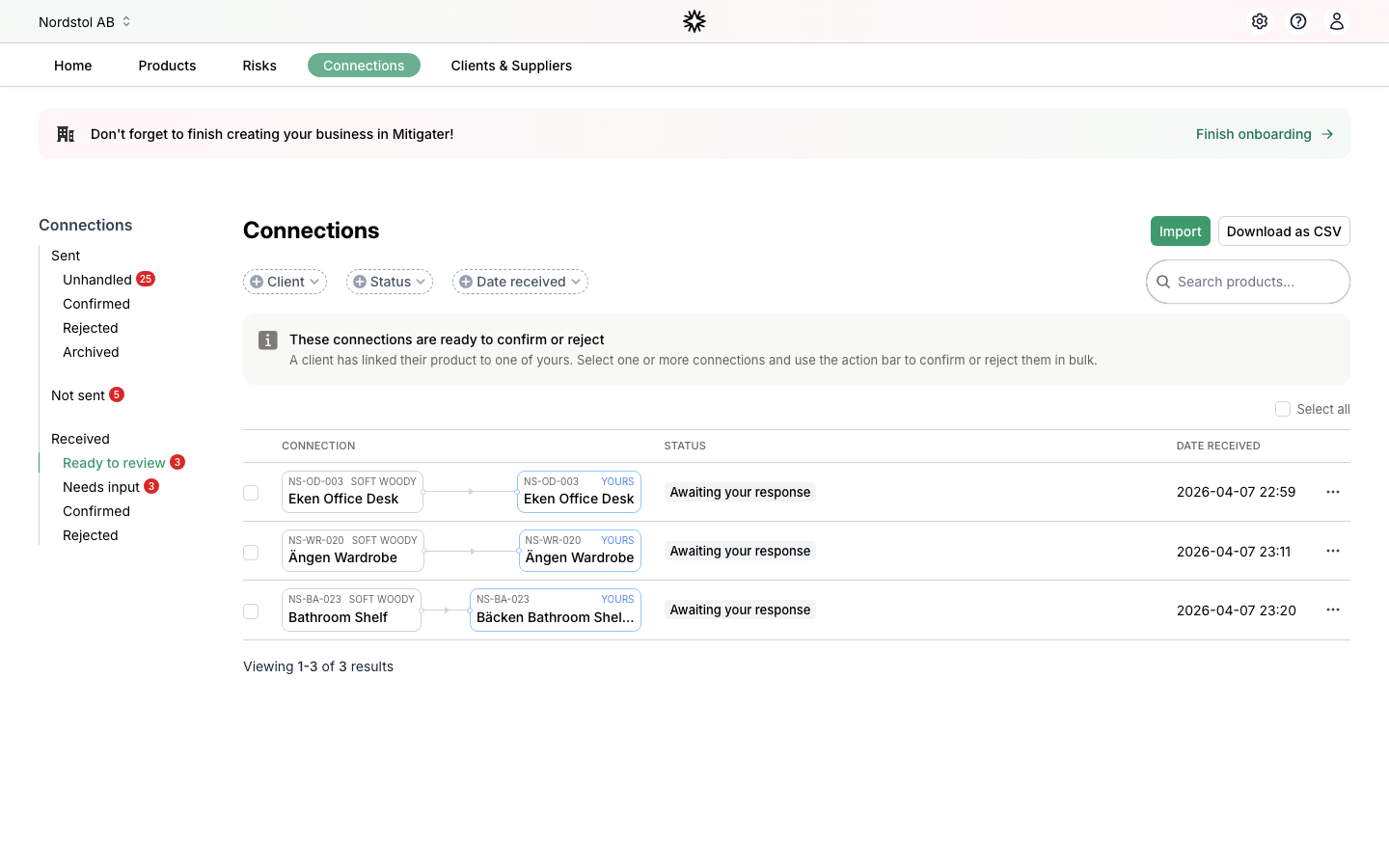
When an unhandled connection has status "Received", and no warning, it means that the connection was made automatically to a product you already had in the system.

When a connection was made automatically

Locate the specific connection you want to connect. The three dots indicates that there are settings available.

Locate a connections settings

If the connection is already made automatically and it is correctly connected - just click confirm

Confirm a received connection

5. When no matching product was found

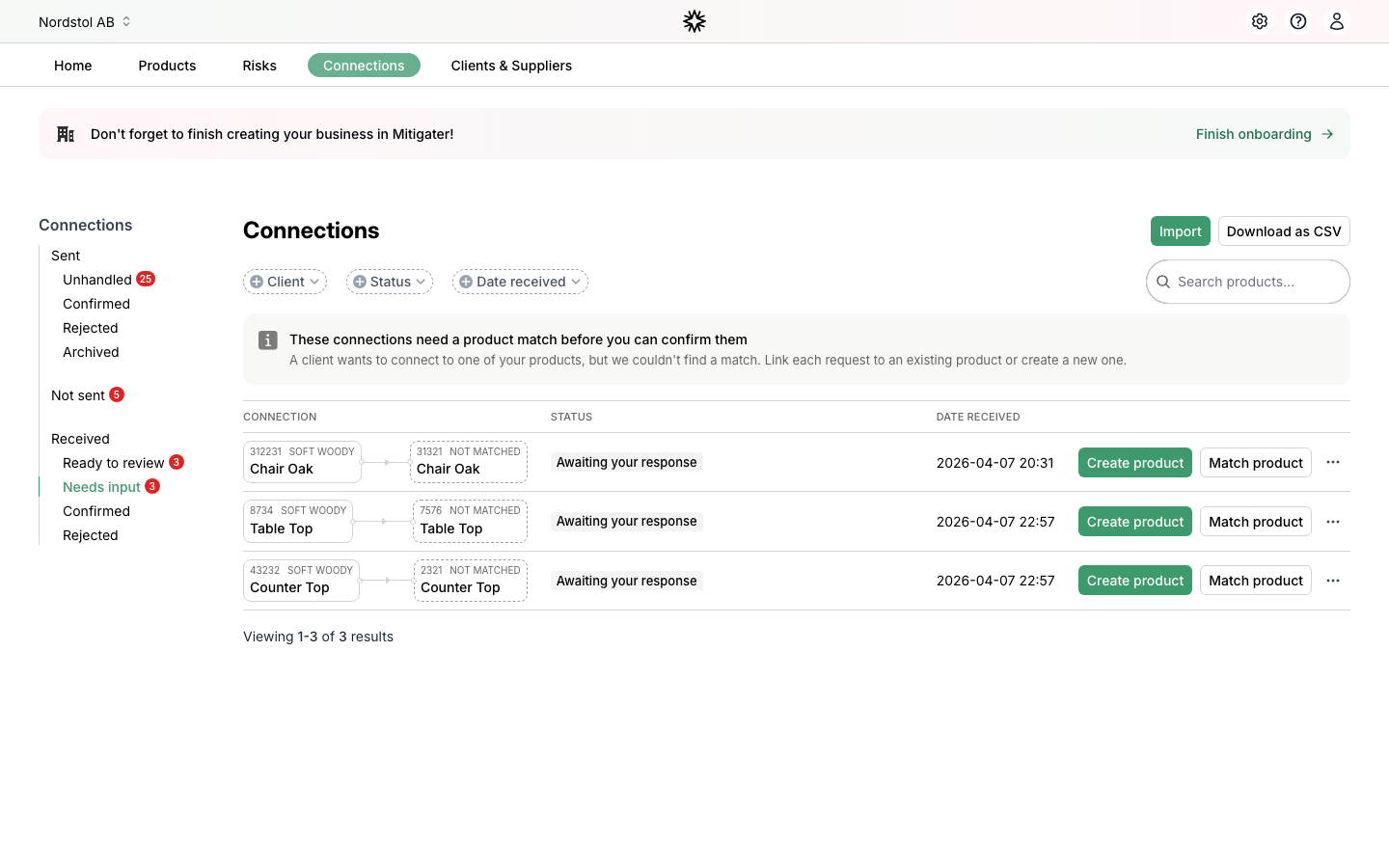
When no matching product was automatically found for the received connection, it might be that you already have the product, but you gave it another product number than suggested by your client.

When no matching product was found

To connect an existing product you also open the settings.

Locate a connections settings

Select to connect an existing product.

Click 'Connect an existing product'

Click change on the current connections detail view.

Click 'Change'
You can search among your own products. Select the correct product for the connection from your products list.
Select the product from your products that you want to connect
When the connection is correct - click "Continue".
Click 'Continue'

Do not forget to confirm the connection from the settings list.

Navigate to the connections settings
Confirm the connection
Click 'Confirm'

6. When you have not yet uploaded the product

When no matching product was automatically found, it could also be that you have not yet added that product to Mitigater.

Navigate to the connections settings

Click on the settings icon.

Navigate
Click "Create the missing product" to add your own product in Mitigater for the connection.
Click 'Create the missing product'

7. Add a new product

You can see the requested product above the form to help you with what information to add.

What information to add

Just click the suggested name and/or product number to copy the values when you want to use the same. But if you use another article number and/or name than your client wrote - don't do this. Then type your own values.

How to reuse suggested values

When the product information is added click "Save and connect"

Click 'Save and connect'

The new product is added and automatically connected to your clients product.

The new product is connected

8. Filter connections

Filter on Confirmed under Received to see all your confirmed connections.

Filter connections
This guide covered the process of handling received connections in Mitigater. When connections are being made between products in Mitigater you help mapping out the value chains on a product level. A great way for you and your clients to understand the journey of your products.
Next step: Learn how to handle products without connections.