First steps

This guide provides step-by-step instructions for getting started with Mitigater, a platform for business risk management and compliance. It walks users through the essential setup process, from creating an account to configuring their company profile.

Following these steps ensures proper setup of your Mitigater workspace for effective risk management and compliance tracking.


Sign up

To create your Mitigater account, simply fill in the required fields on the Sign-up form:

  • Email: Enter your work email address (e.g., name@example.com).
  • Name
    • First Name: Your first name.
    • Last Name: Your last name.
  • Job Title: Your role within the organization, such as Chief Executive Officer.
  • Password: Choose a secure password, then re-enter it to confirm.

If you’d like to receive occasional updates and resources, you can check the box to subscribe to Mitigater’s helpful emails. You can unsubscribe at any time, and more details are available in our Privacy Policy.

Finally, review and accept the Terms & Conditions, then click Create Account to complete your registration.

Create a new company

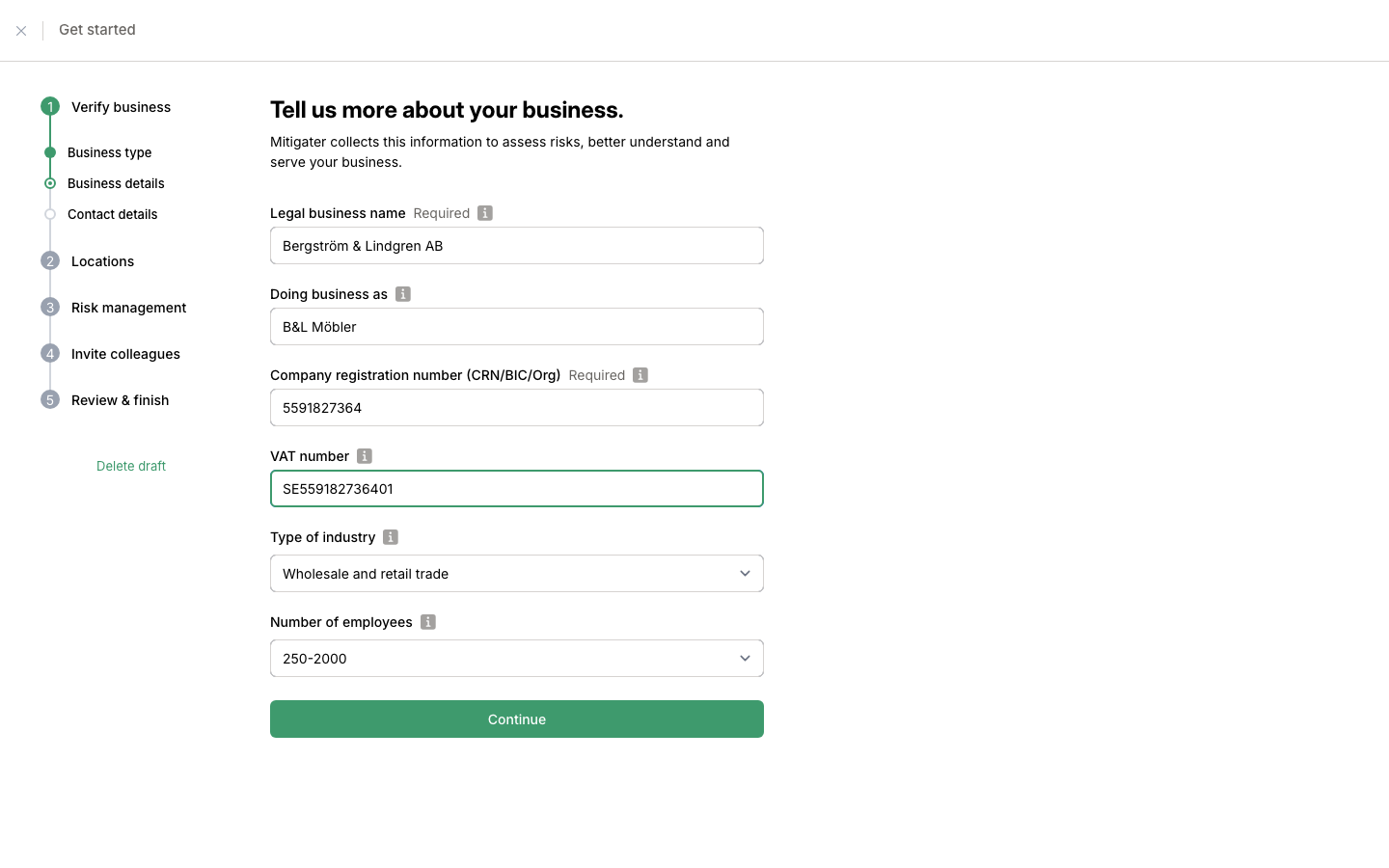
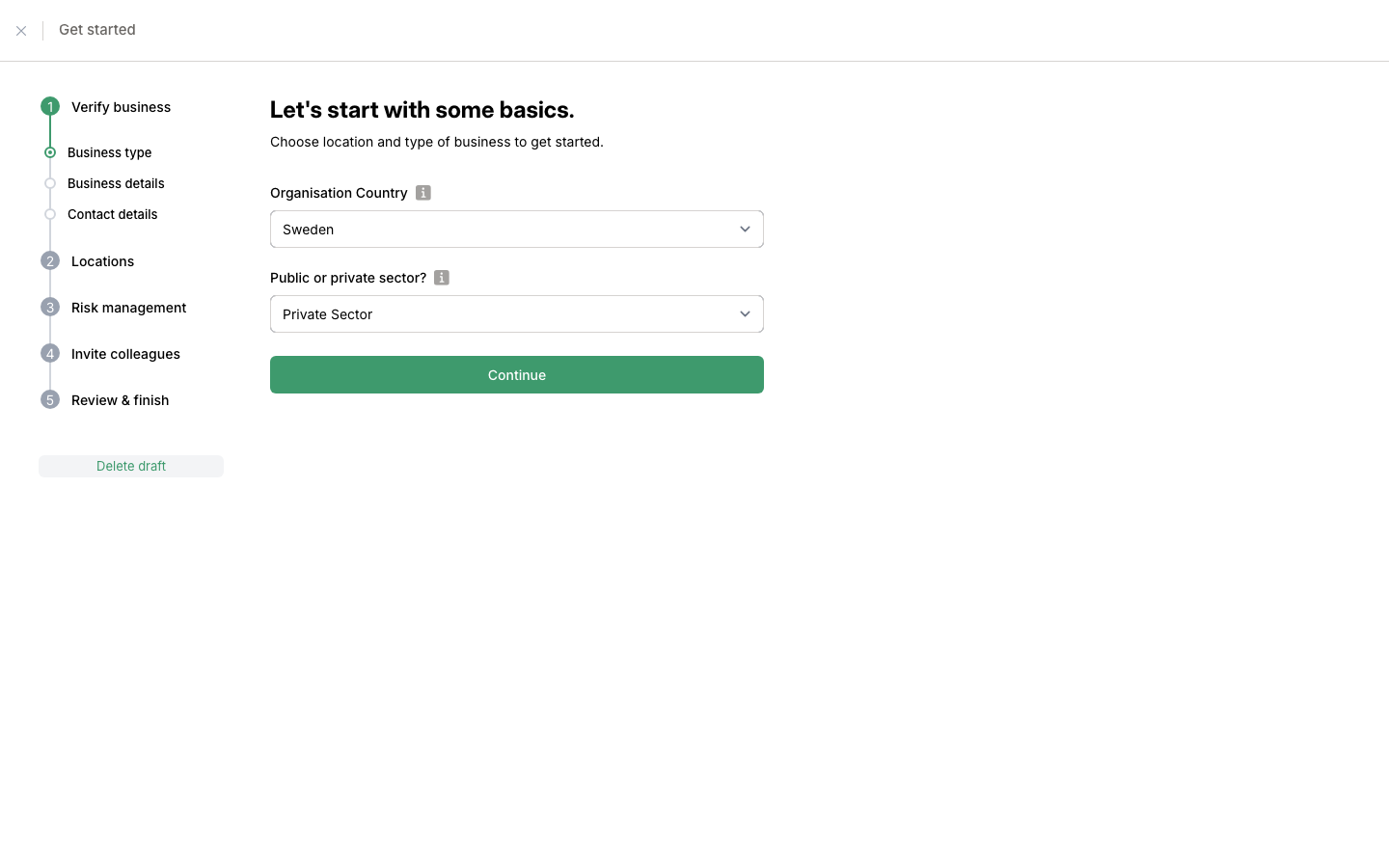
To get started, you’ll need to verify your business and provide basic information about your company, including contact details.


Basic Company Information

  • Organization Country: The country where your company is headquartered and conducts daily operations.
  • Public or Private Sector: Specify whether your company operates in the public or private sector.
  • Legal Business Name (required): The official name under which your company is legally registered.
  • Doing Business As: The name your company commonly uses for business purposes (if different from the legal name).
  • Company Registration Number (Required): A unique identifier, such as CRN, BIC, or Org number, that officially identifies your company.
  • VAT Number: Used for VAT-related transactions; provide this if your company is VAT-registered.
  • Type of Industry: The industry that best describes your company’s area of operation.
  • Number of Employees: The total number of employees employed across your company.

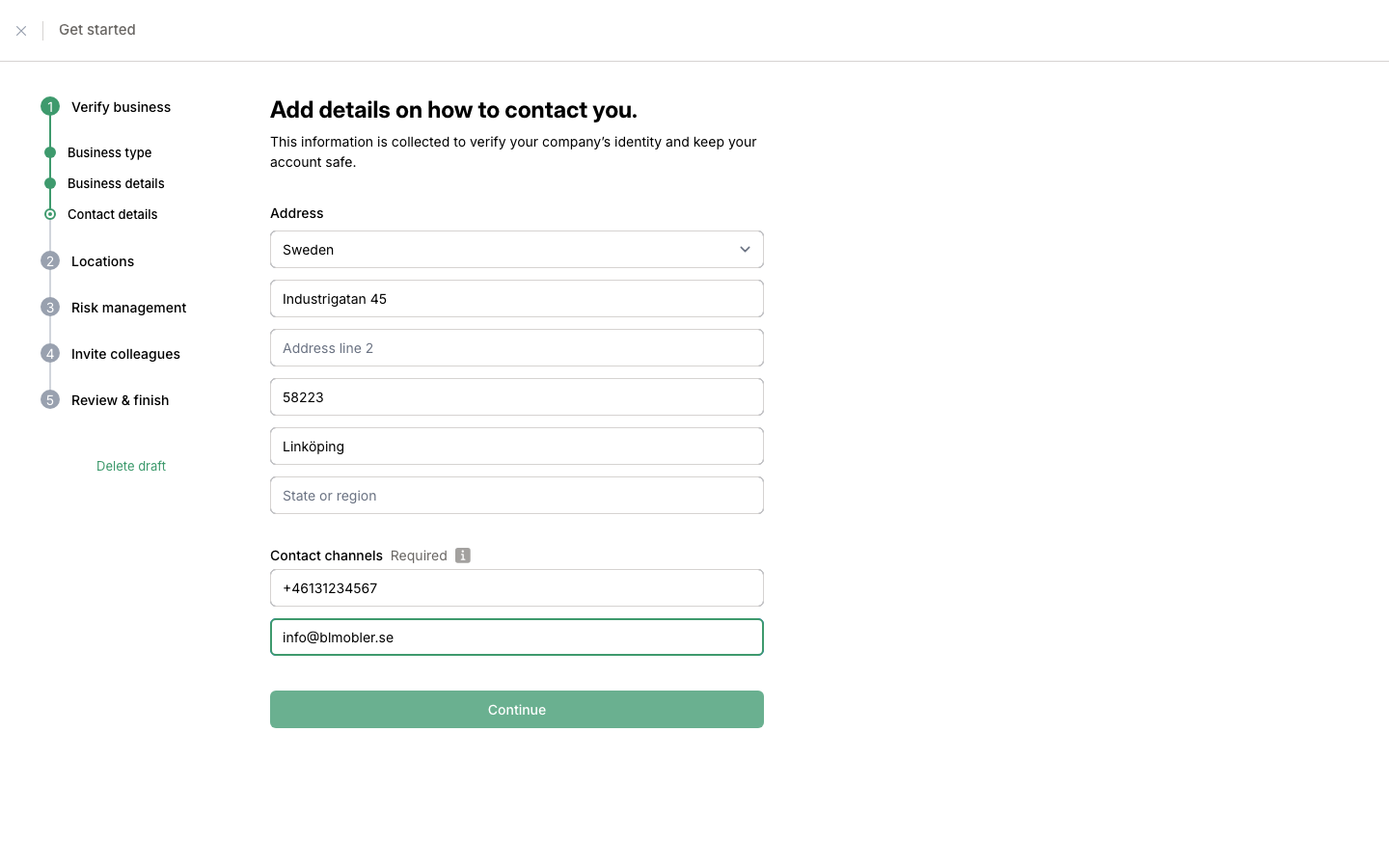
Contact Information

  • Country (Required)
  • Address Line 1 (Required): The primary street address for your business.
  • Address Line 2: Optional additional address details.
  • Postal Code (Required): The postal code for the business location.
  • Town or City (Required): The city or town where your business is located.
  • State or Region: The state or region, if applicable.

Contact Channels

  • Phone Number (Required): A direct phone number for someone at the company responsible for your work with Mitigater.
  • Email Address (Required): The email address of a primary contact person who can assist with any questions or needs related to Mitigater.

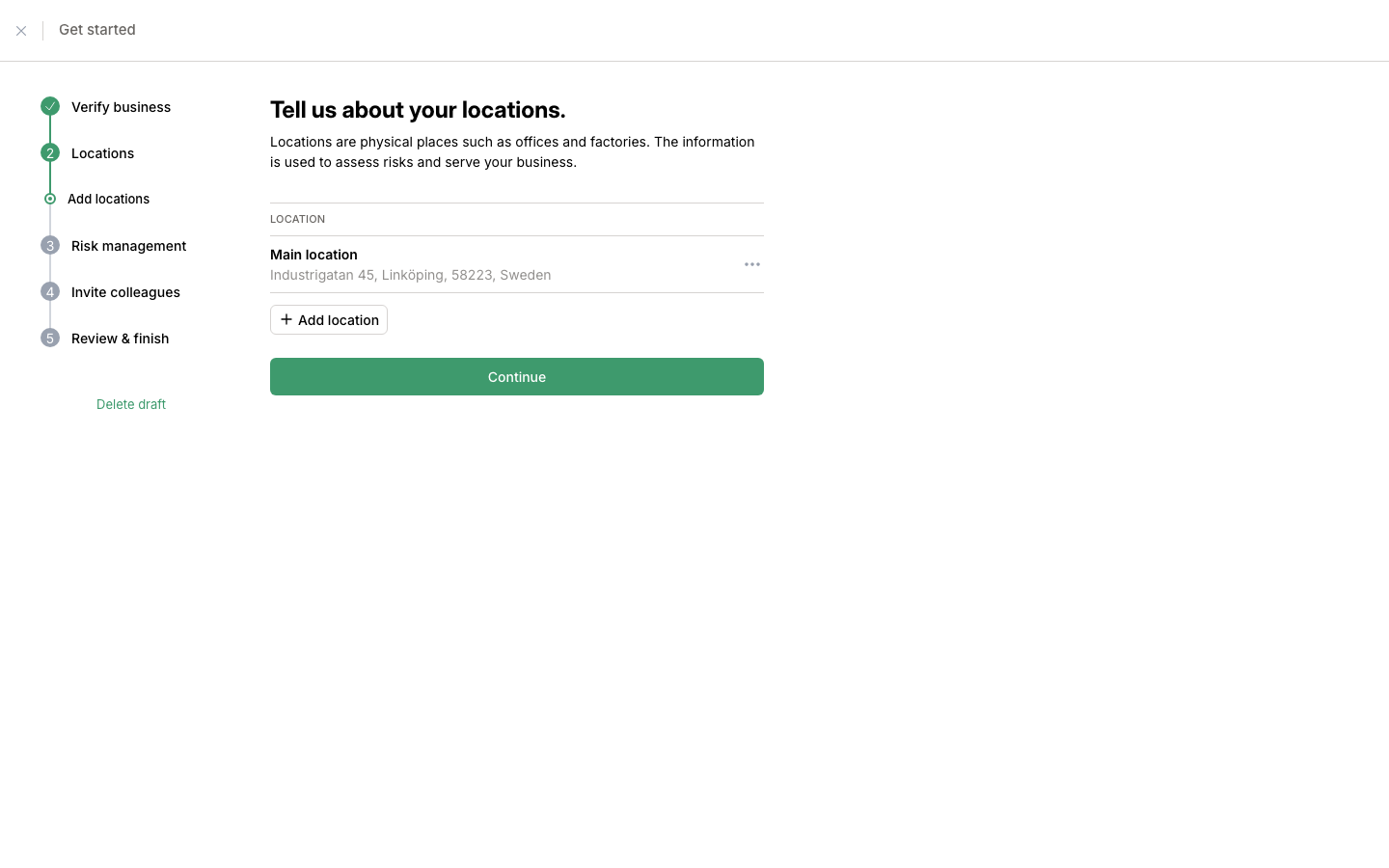
Add locations

To get started, you’ll need to verify your business and provide basic information about your company, including contact details.


To add a location in Mitigater, please fill in the following details:


  • Country (Prefilled): Has to match the company’s country.
  • Location Name: Enter a descriptive name for the location, such as "Lyon Office" or "Main Factory."
  • Address Line 1: The primary street address for this location.
  • Address Line 2: Additional address details if needed, such as a building or suite number.
  • Postal Code: The postal code associated with this location.
  • City: The city where the location is situated.
  • Registration Number (CRN/BIC/Org): Enter the unique registration number associated with this location, such as CRN, BIC, or organization ID. This helps identify the location within regulatory and compliance contexts. If a location operates under a different registration number, it must be added as a separate organization.

Once all fields are complete, click Add Location to save the information

print-screen
Note: If a location operates under a different registration number or in another country than main location, it must be added as a separate organization. This ensures accurate risk assessment and compliance management specific to each legal entity within your company structure.

Manage risks


Add certificates

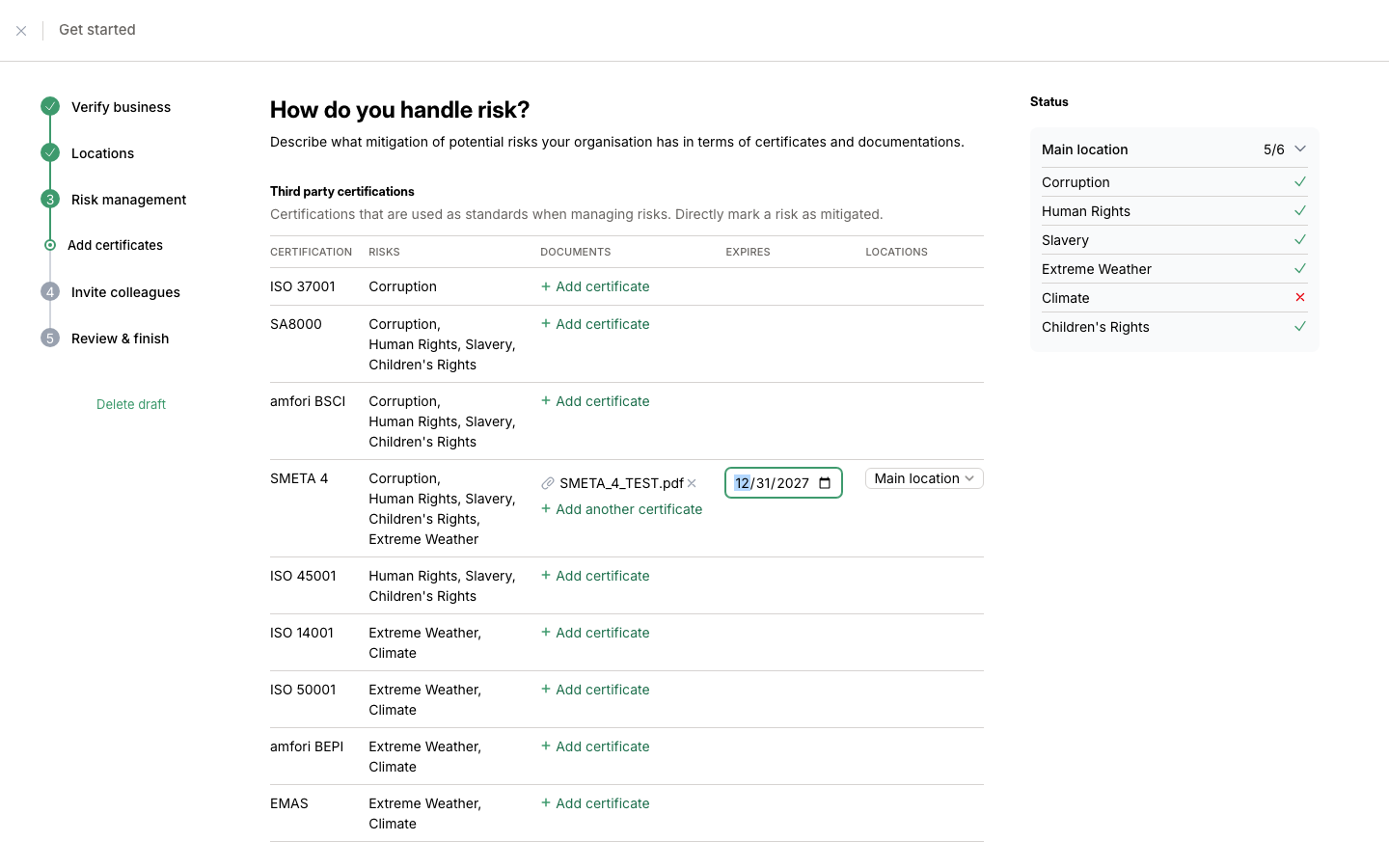
In this step you can add the certifications for your company. By uploading these documents, setting expiry dates, and linking them to your business locations, you help ensure that your company’s compliance and risk management practices are clear and up to date.

print-screen

For each location, we have a status checklist that covers different risk areas. As you add certifications that address these risks, the corresponding boxes will be ticked off for each location, helping you track which risks are covered and which still needs attention.

print-screen
Note: You can return to this page at any time to add, update or remove certifications as your risk management needs evolve.

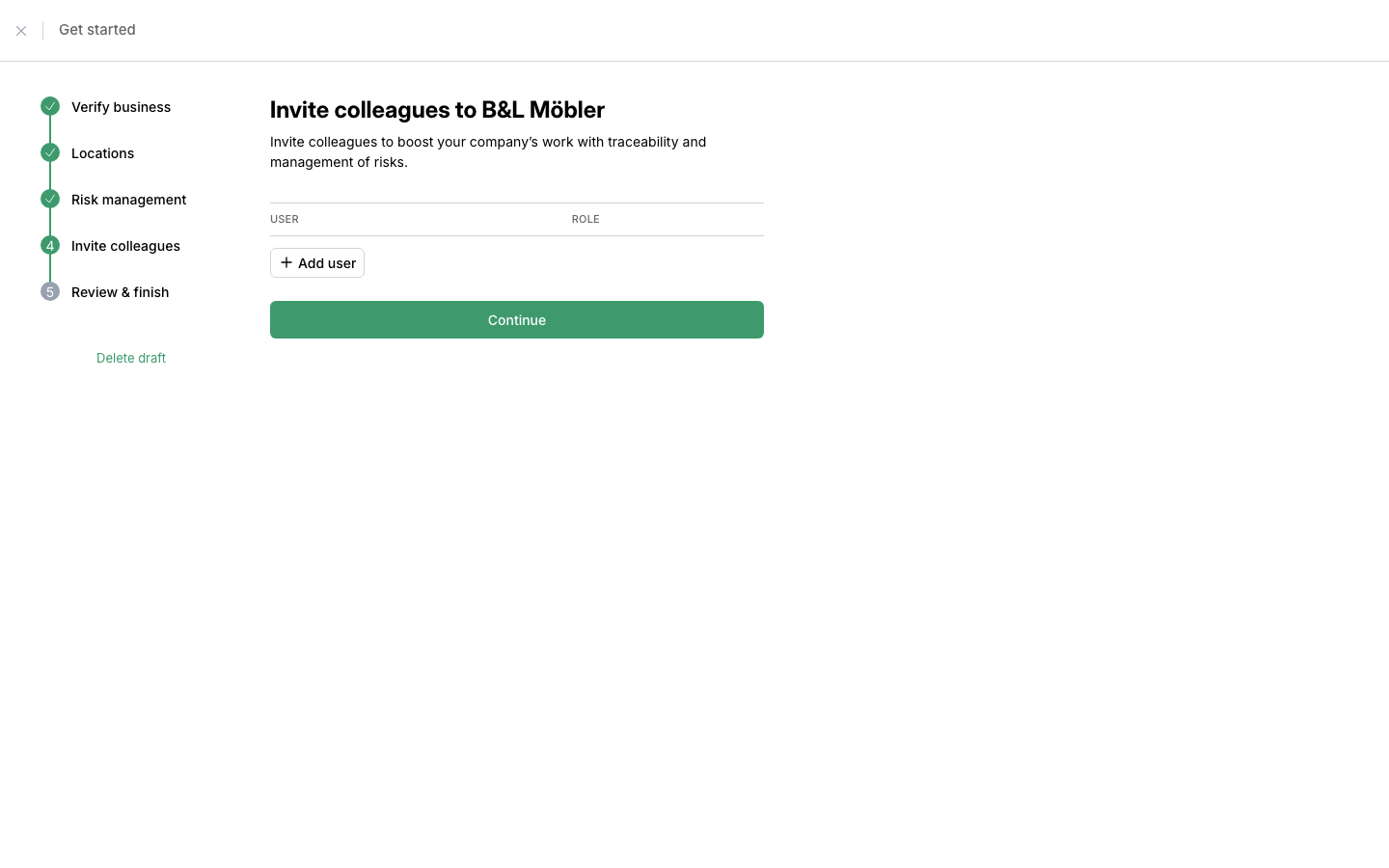
Add colleagues

Mitigater allows you to add colleagues as users, so your team can work together in the platform.

To add a new user, you’ll need the following information:


  • Email (Required): The colleague’s work email address for login and notifications.
  • Name
    • First Name (Required)
    • Last Name (Required)
  • Job Title: The colleague’s role in the organization.
  • Role: Assign a user role within Mitigater to set permissions and access levels. For now the only option is Owner.

Adding team members lets everyone stay aligned, track progress, and contribute to your company’s sustainability and compliance efforts seamlessly.


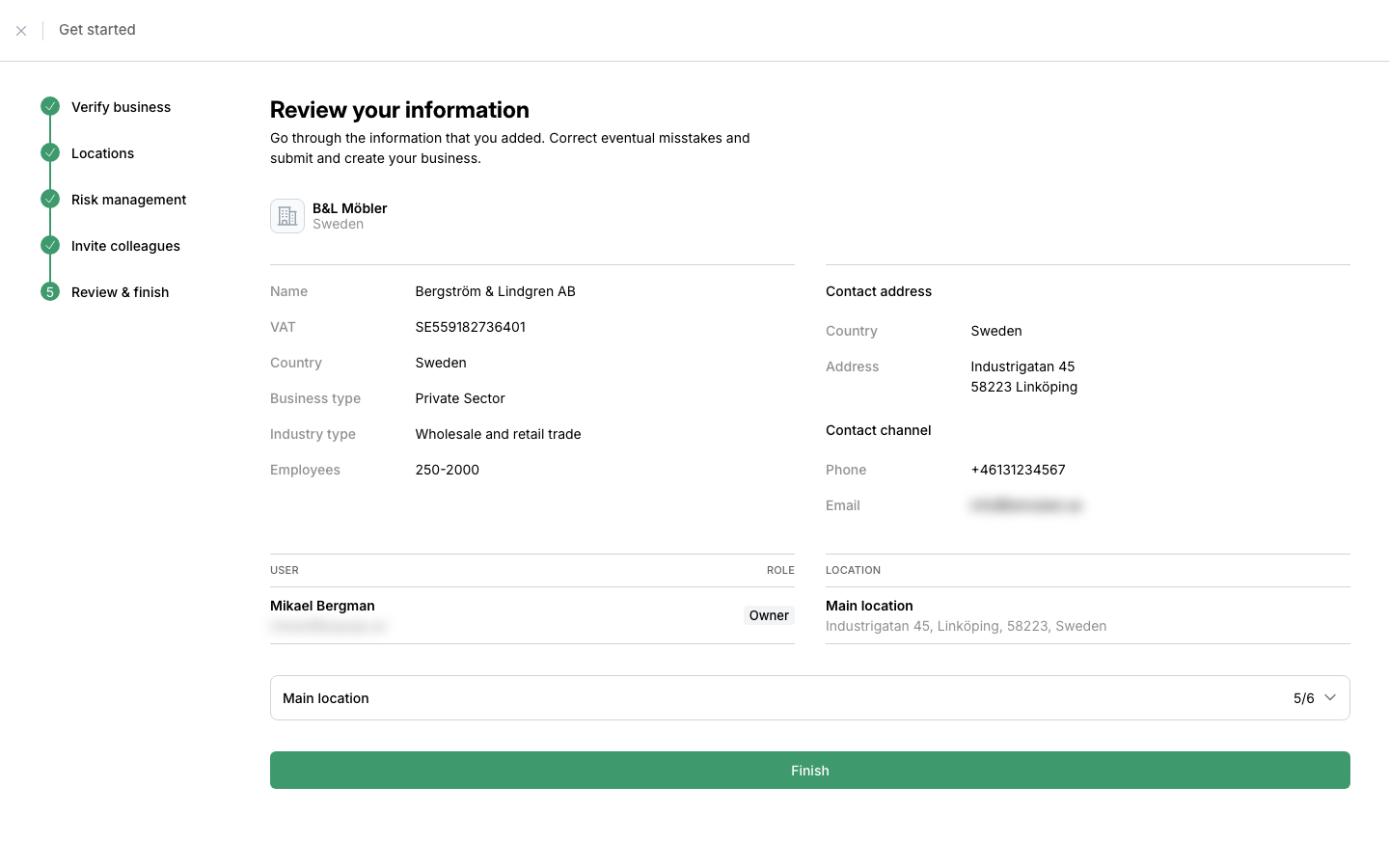
Registration is done

Great job! Now that your company’s information, locations, certifications and colleagues are set up, you’re almost ready to start using Mitigater to manage risks, track compliance, and enhance your sustainability efforts.

Note: Before you can fully access all features, your company’s information will need to be verified by our team at Mitigater. Once verified, you’ll receive a confirmation through email, and then you can begin using Mitigater to its full potential!

Been invited by a client?

Next step: Accept an invitation

If not - it is time to import your products:

Next step: Import your products