Import products with excel

This guide will help you with filling out the Excel import template for products, suppliers and connections.


Note: In the suppliers section you SHOULD NOT add yourself as a supplier. The suppliers are only your own suppliers.
When you want to import bigger amounts of data, our excel-import might be the smoothest solution.

Click here to learn how to add products manually for lower amounts of products - without the need of excel.

Find the template file
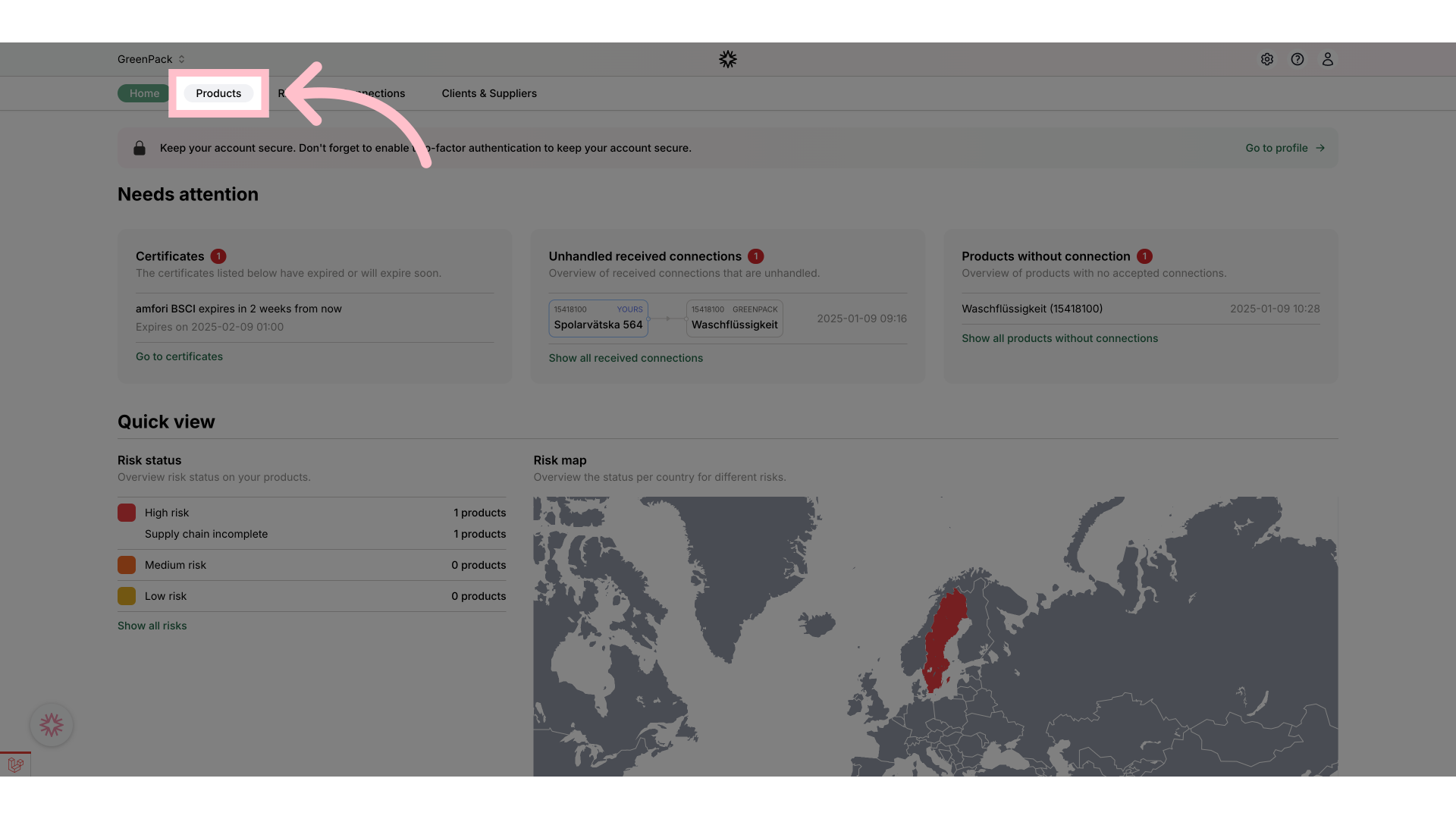
Navigate to the "Products" section.
Click 'Products'
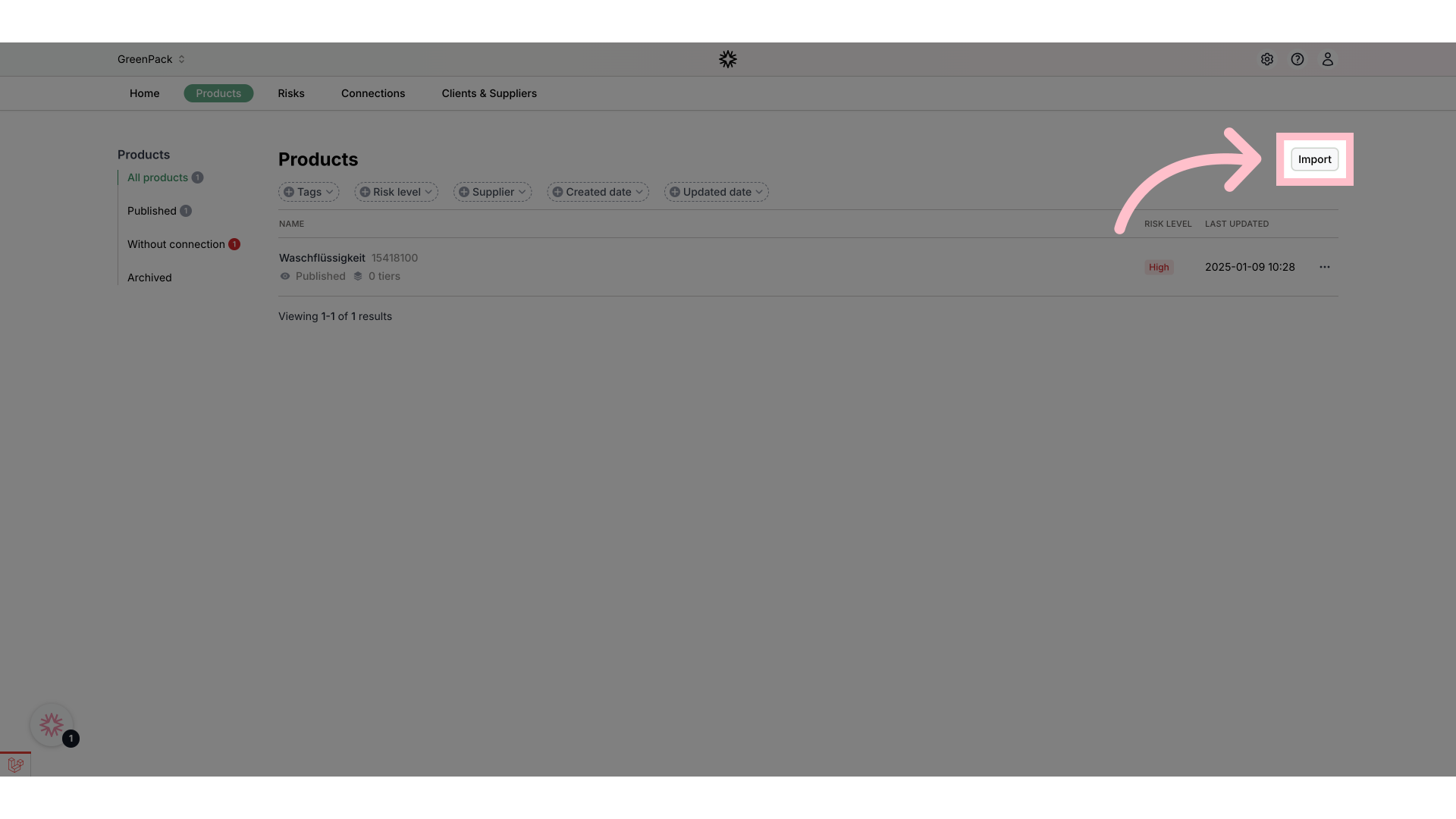
Select the option "Import" from the top right corner.
Click 'Import'
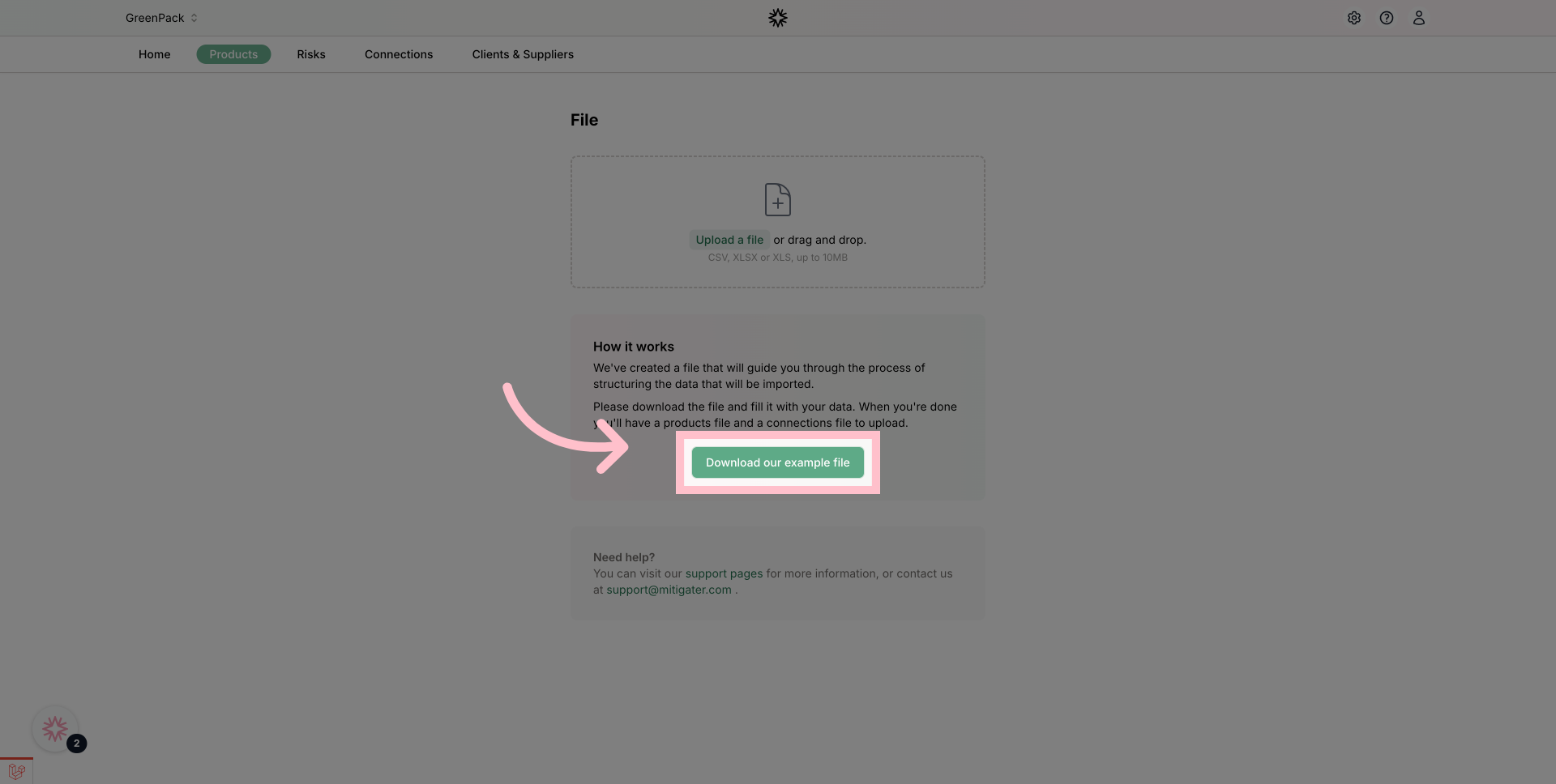
Download the excel example file.
Download the example file

Open in Excel

Open the file mitigater-import with Excel or a similar program.
Open in Excel

The Welcome tab

Start with the Welcome tab at the bottom of the file.
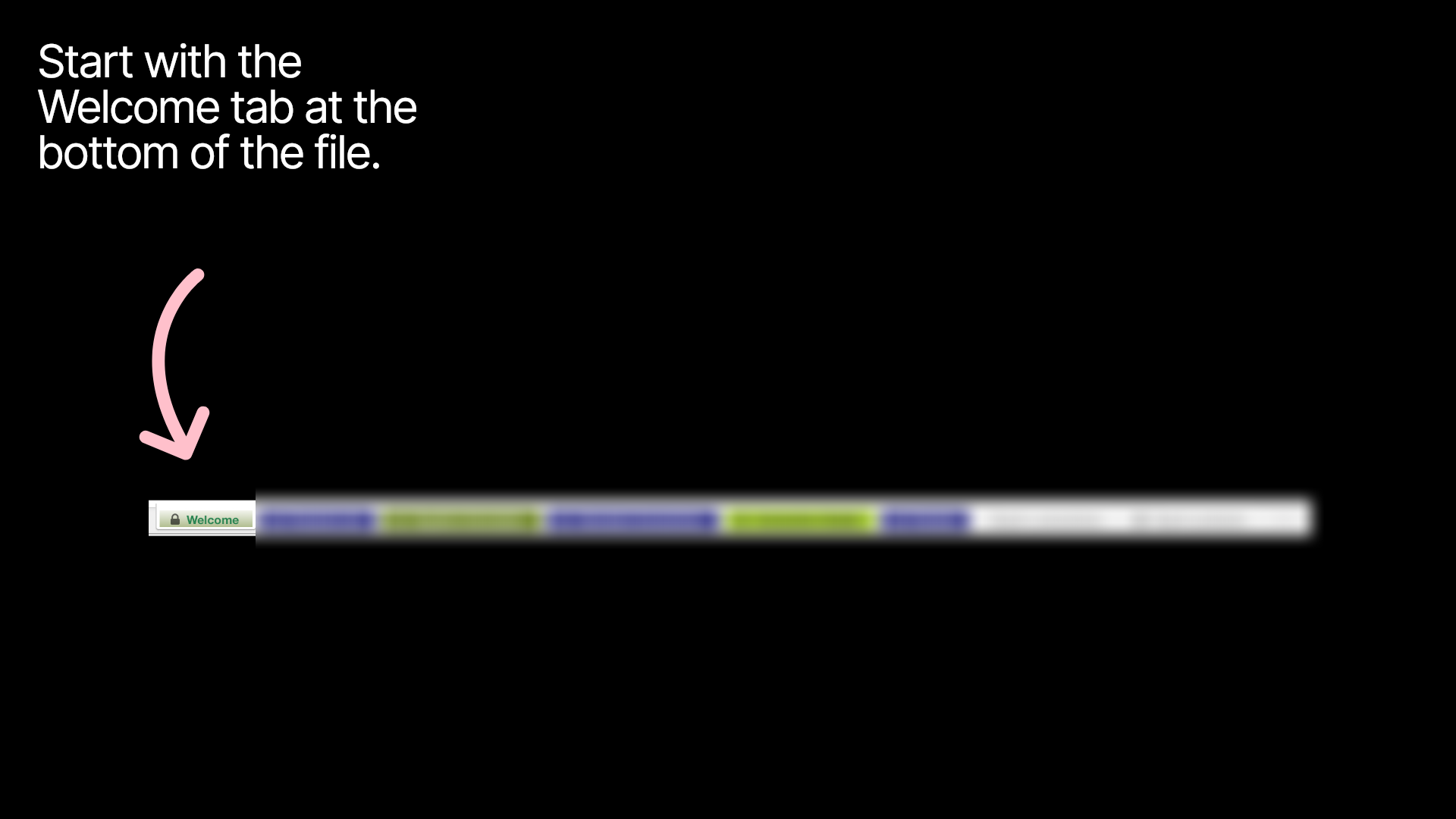
The Welcome tab

All you need to add here is the registred name of your company.
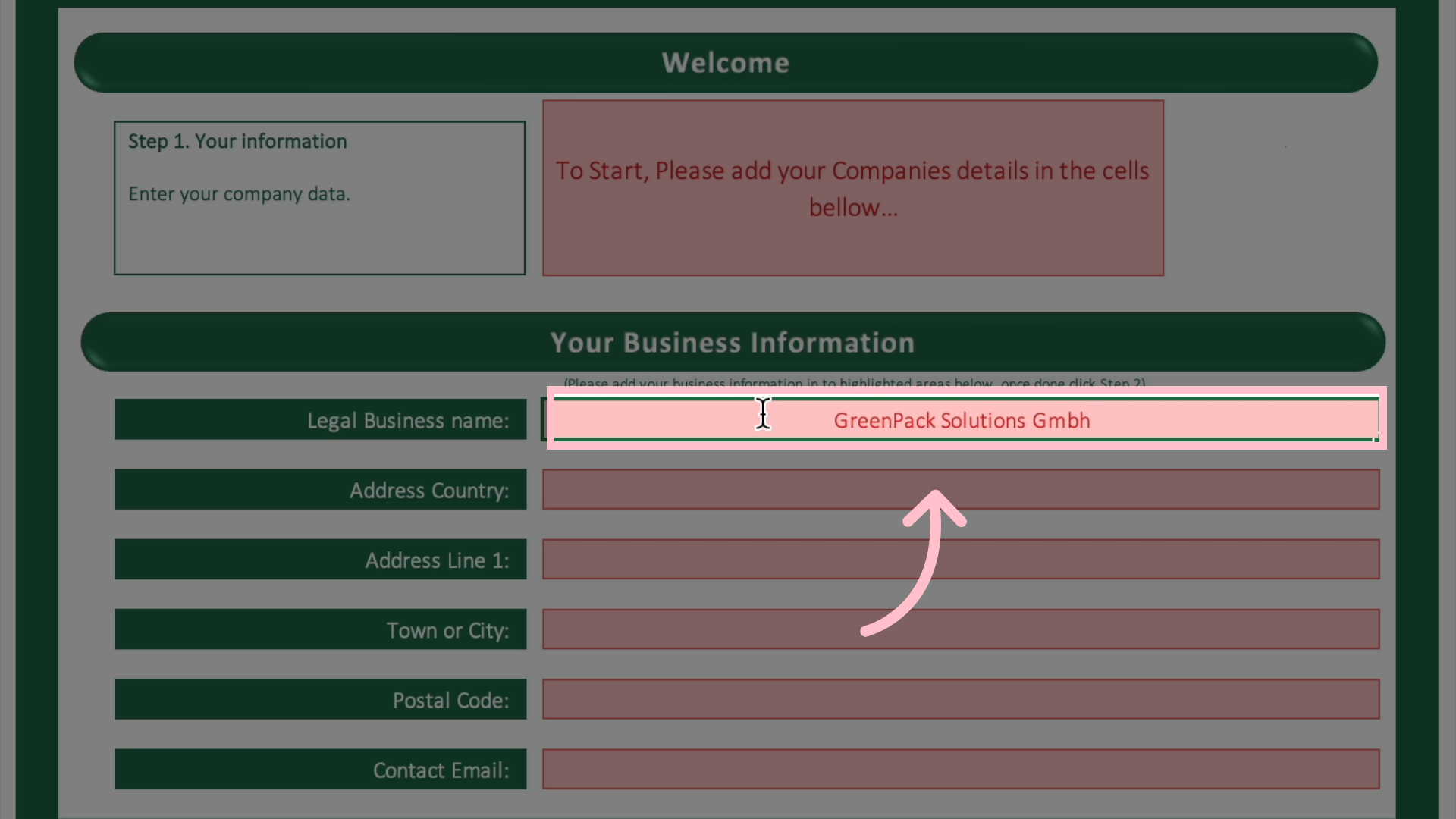
The official registered name of your company.

The Products List tab

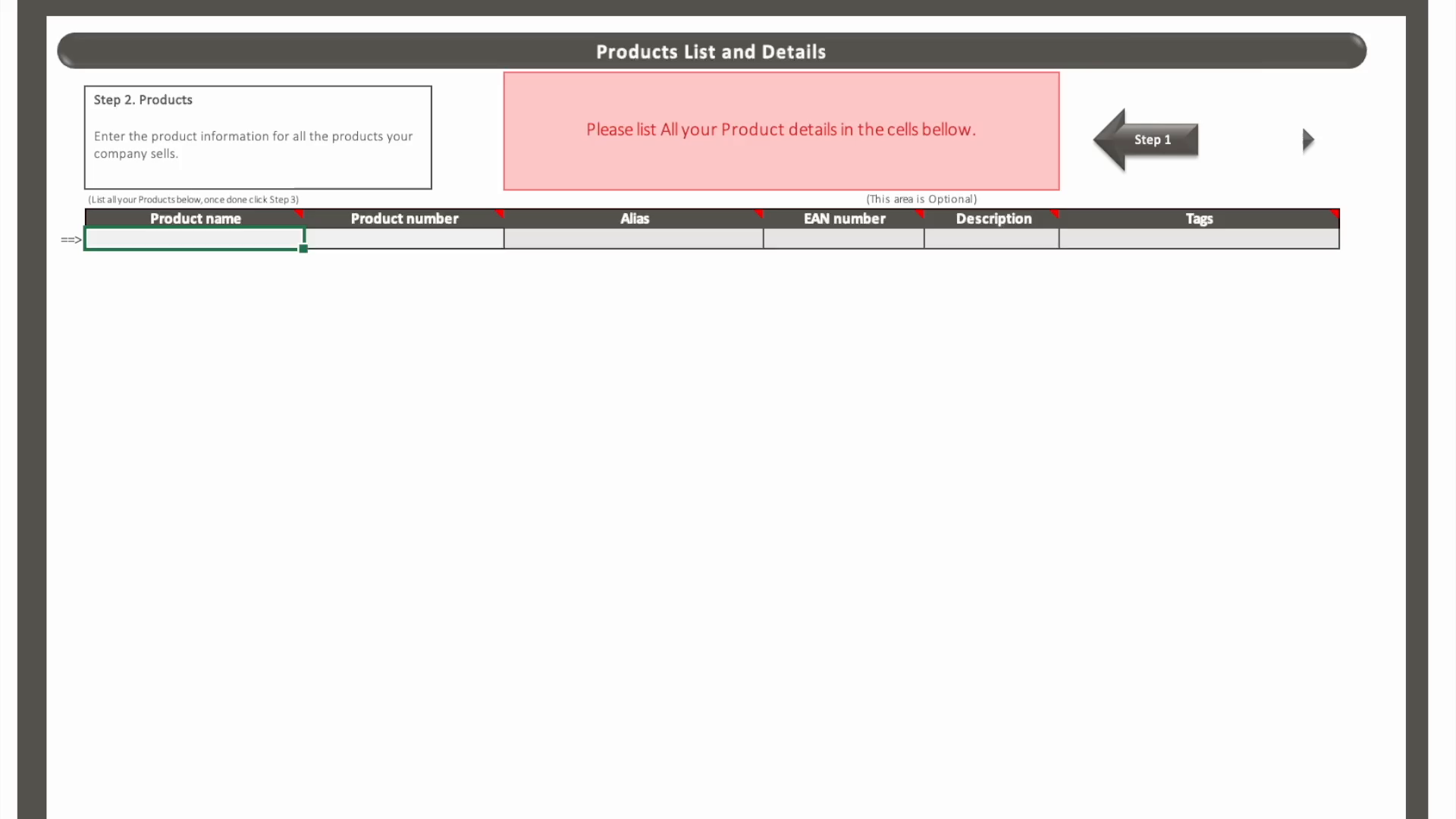
Navigate to the Products List tab at the bottom of the file.
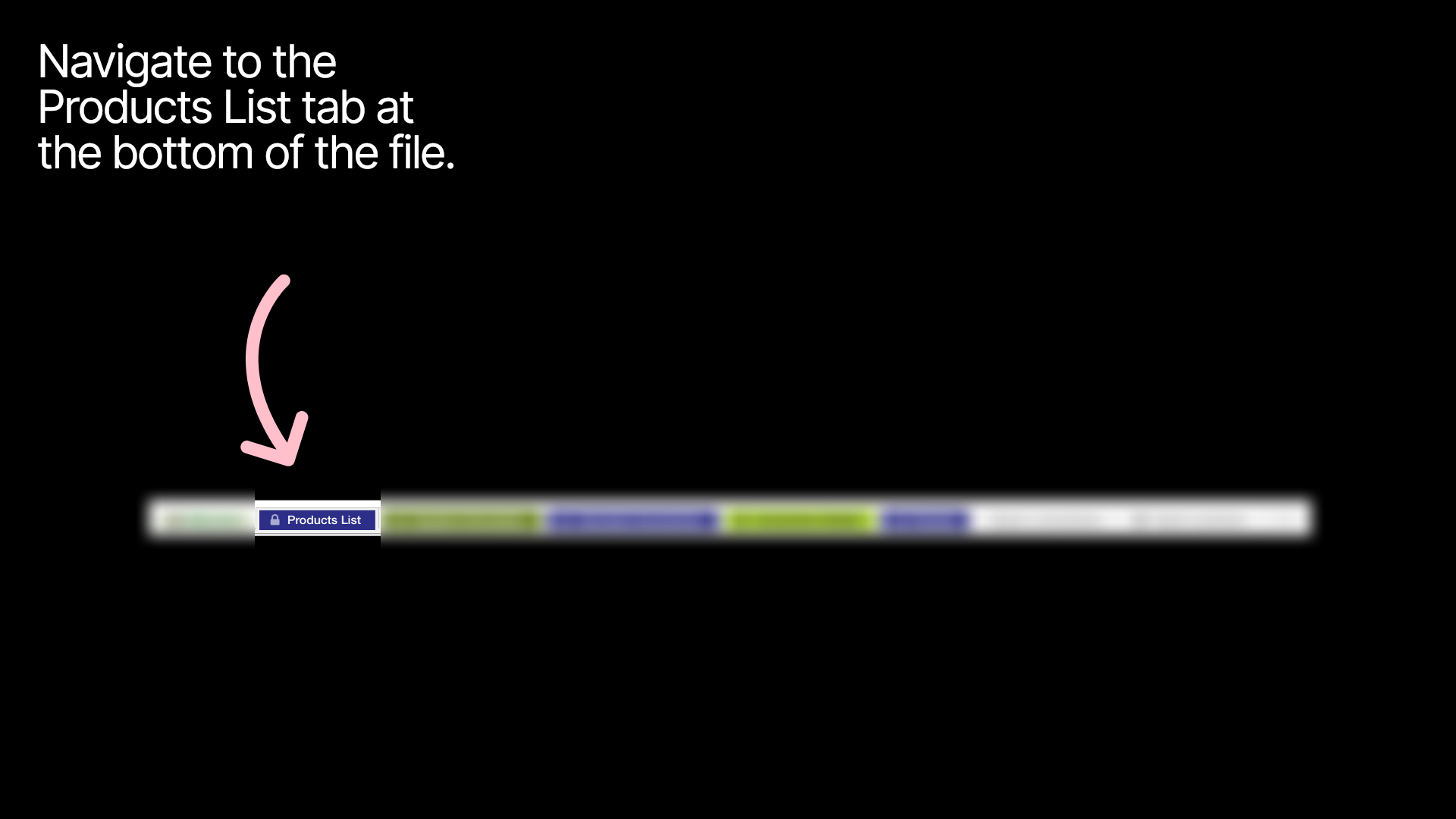
The Products List tab
Start adding your products.
products.snabb

You are required to add the name you use for the product. Max 250 characters.
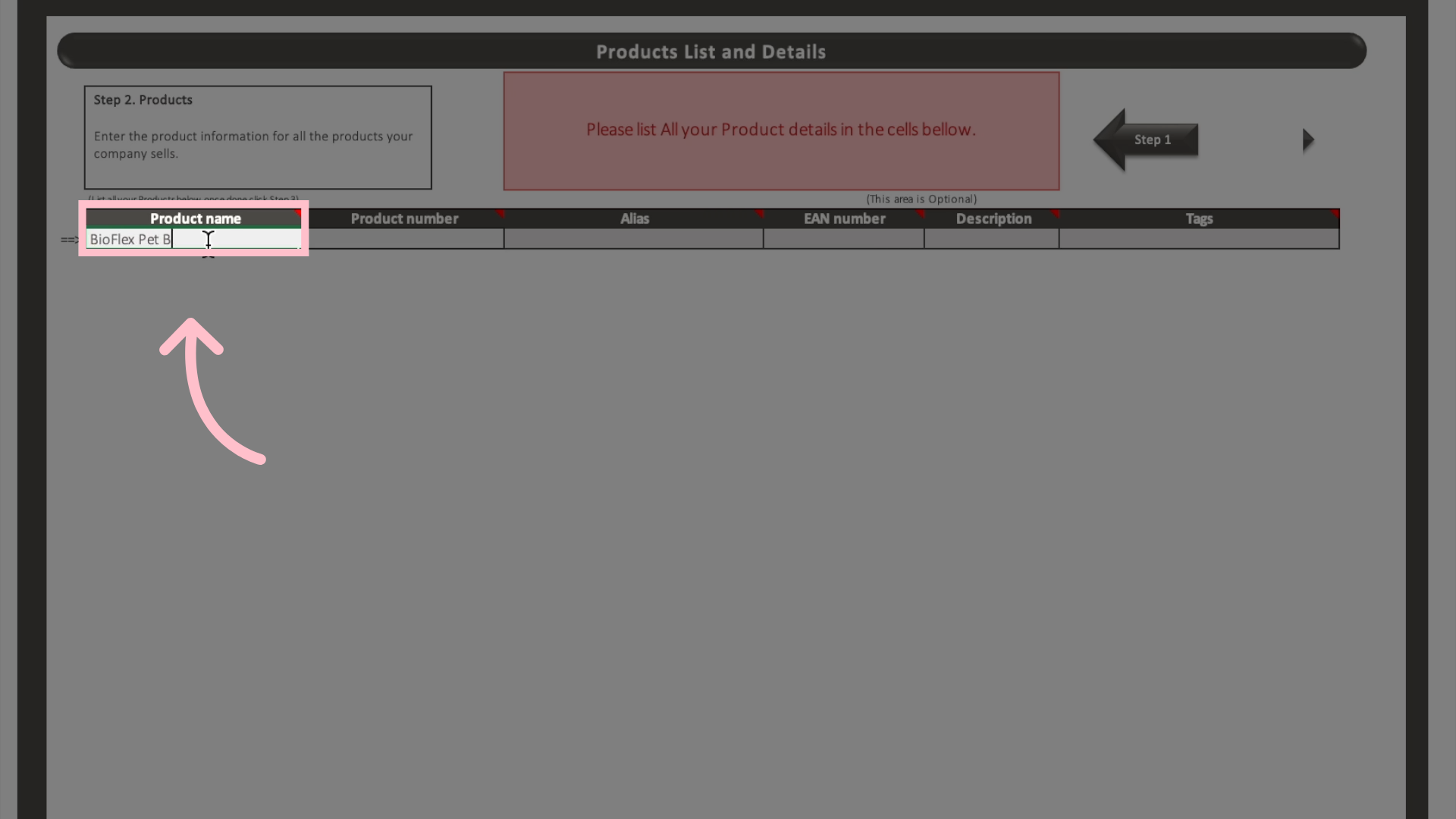
Add Product Values
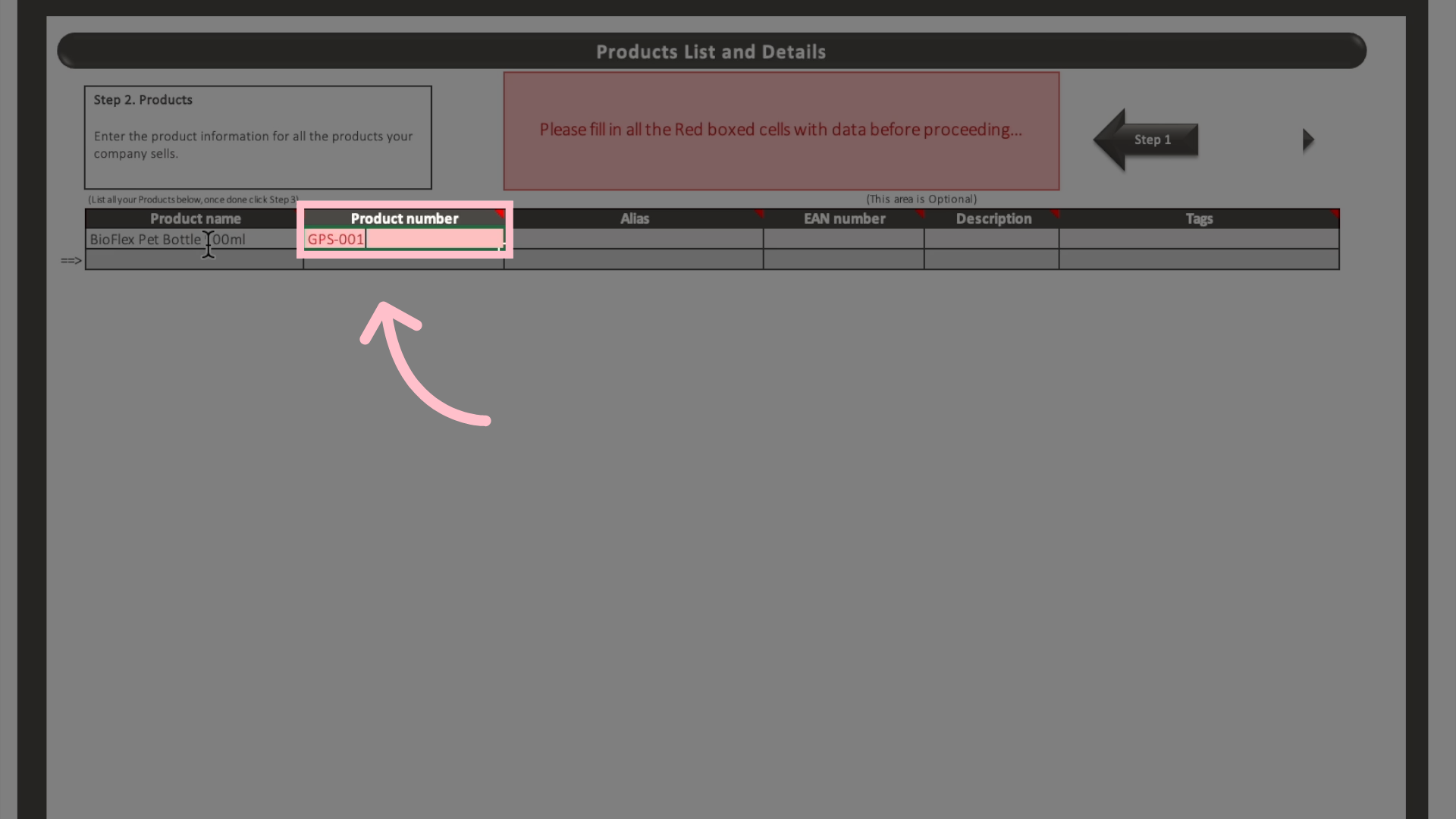
You are also required to add a unique product number. The rest of the product information is optional to add.
A unique identification number for this product
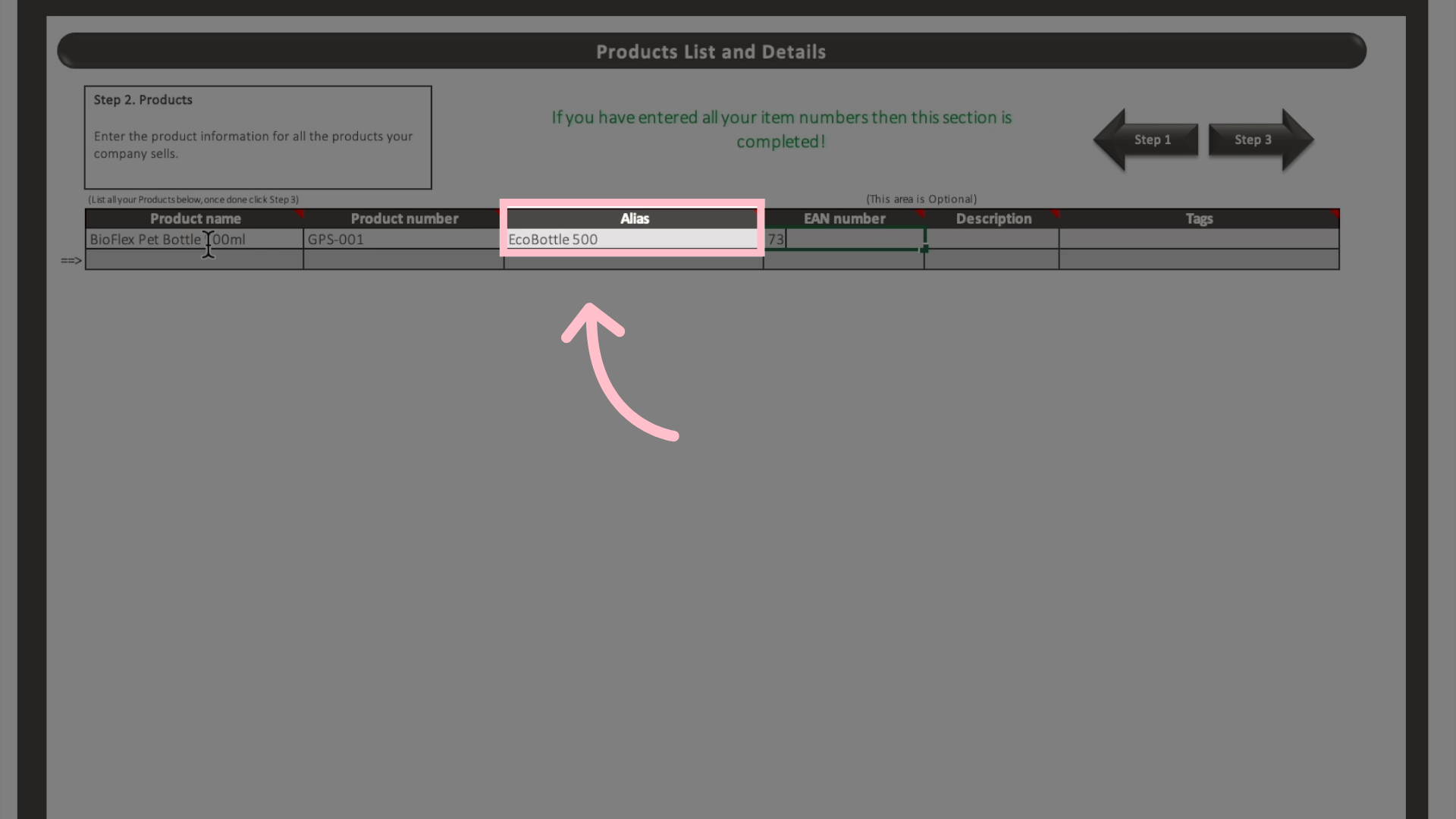
As an optional you can add a nickname or an alternative name commonly used for this product.
Nickname or alternative name commonly used for this product.

Max 250 characters.
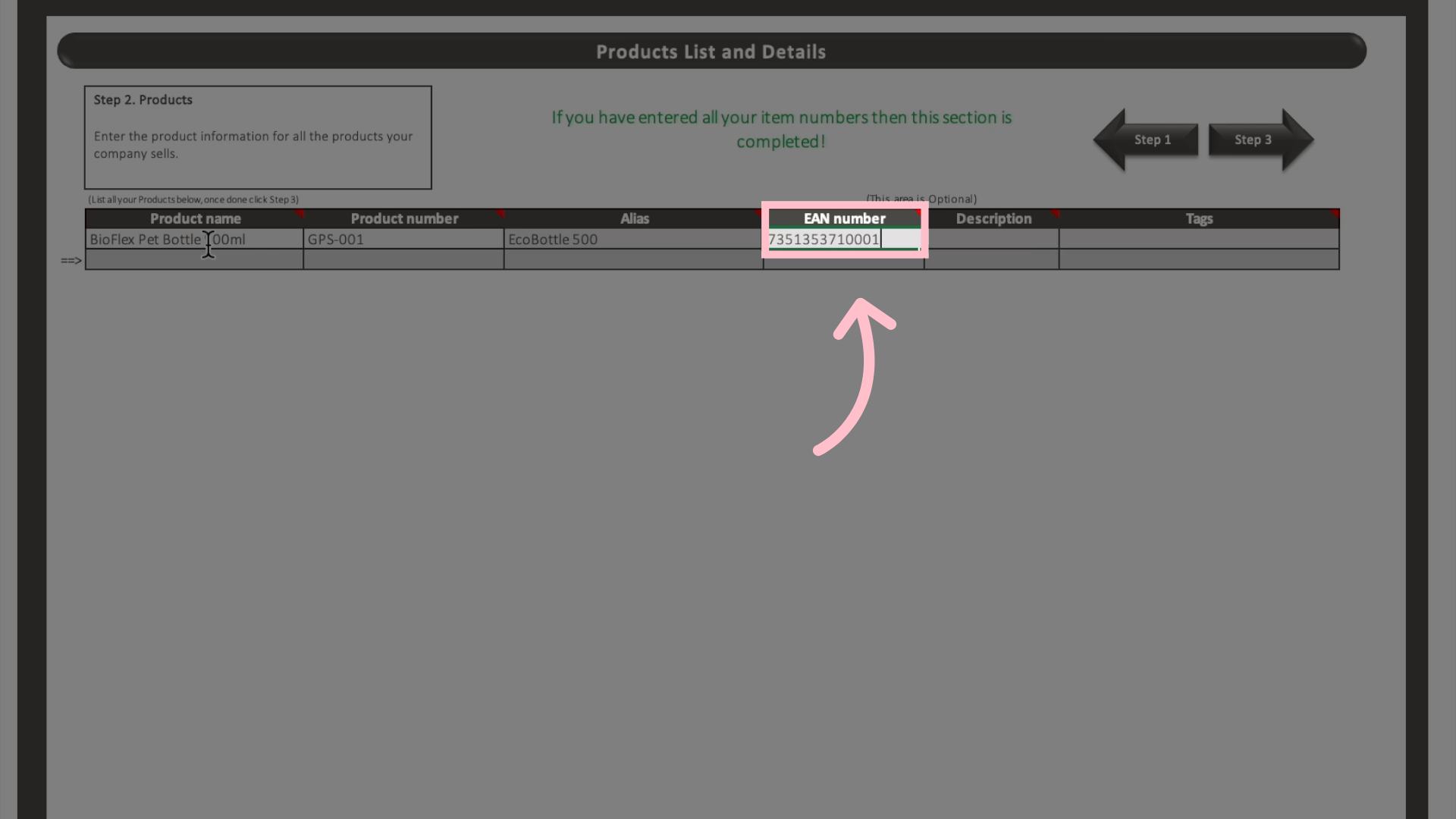
You can, optionally, add a EAN-number
The unique European Article Number (EAN) for the product. If available.
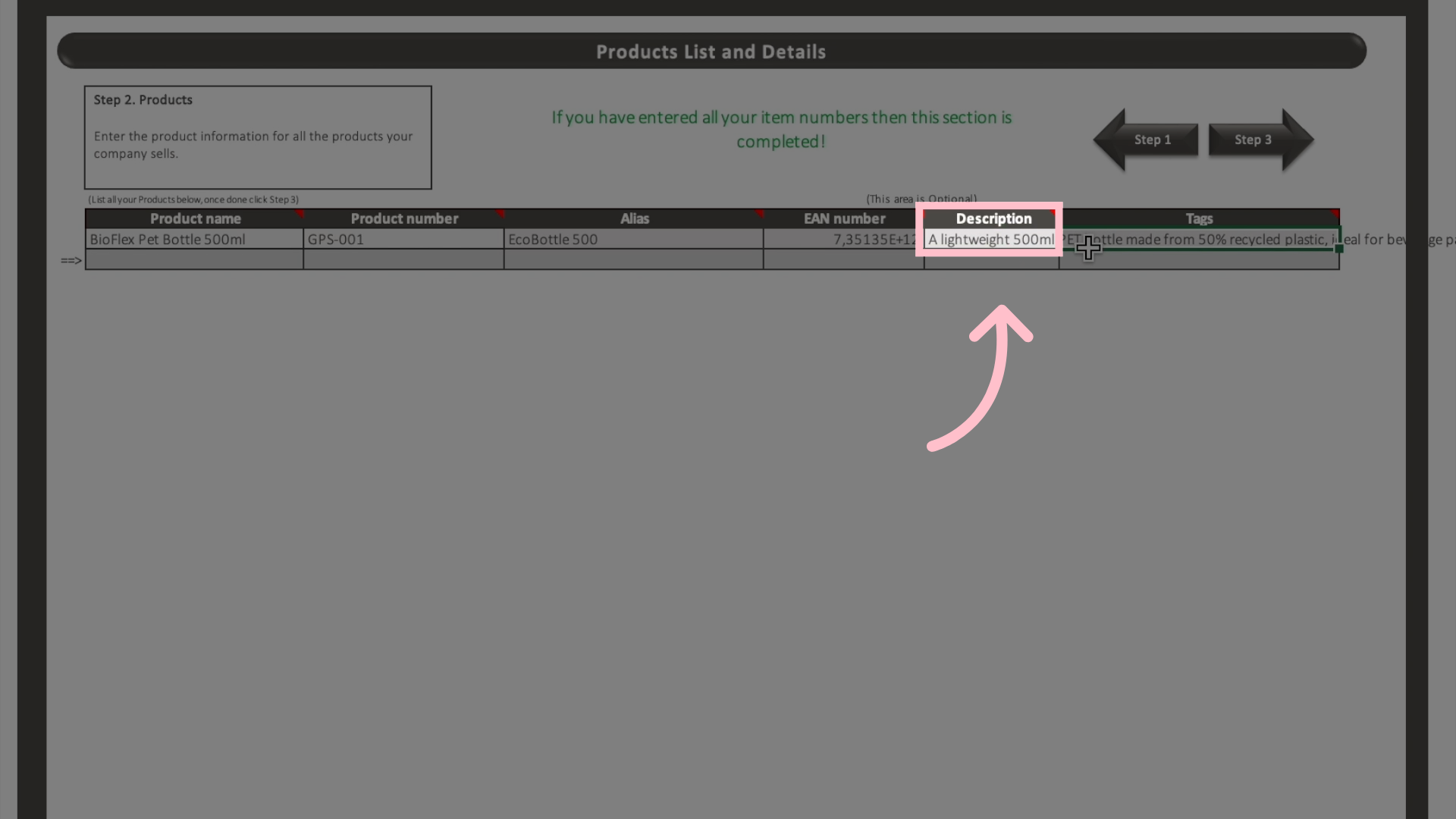
It is also optional to add a brief description. Notice that it can not be longer than 250 characters. If it is to long Mitigater will cut the text.
A brief description of the product.

Max 250 characters.
You also have the option to add your own labels. Separate each label with a comma. These can be used for filtering once the products are imported.

The products can off course be copy pasted from your own excel lists to speed up the process. Remember that it is only Product name and Product number that are required.
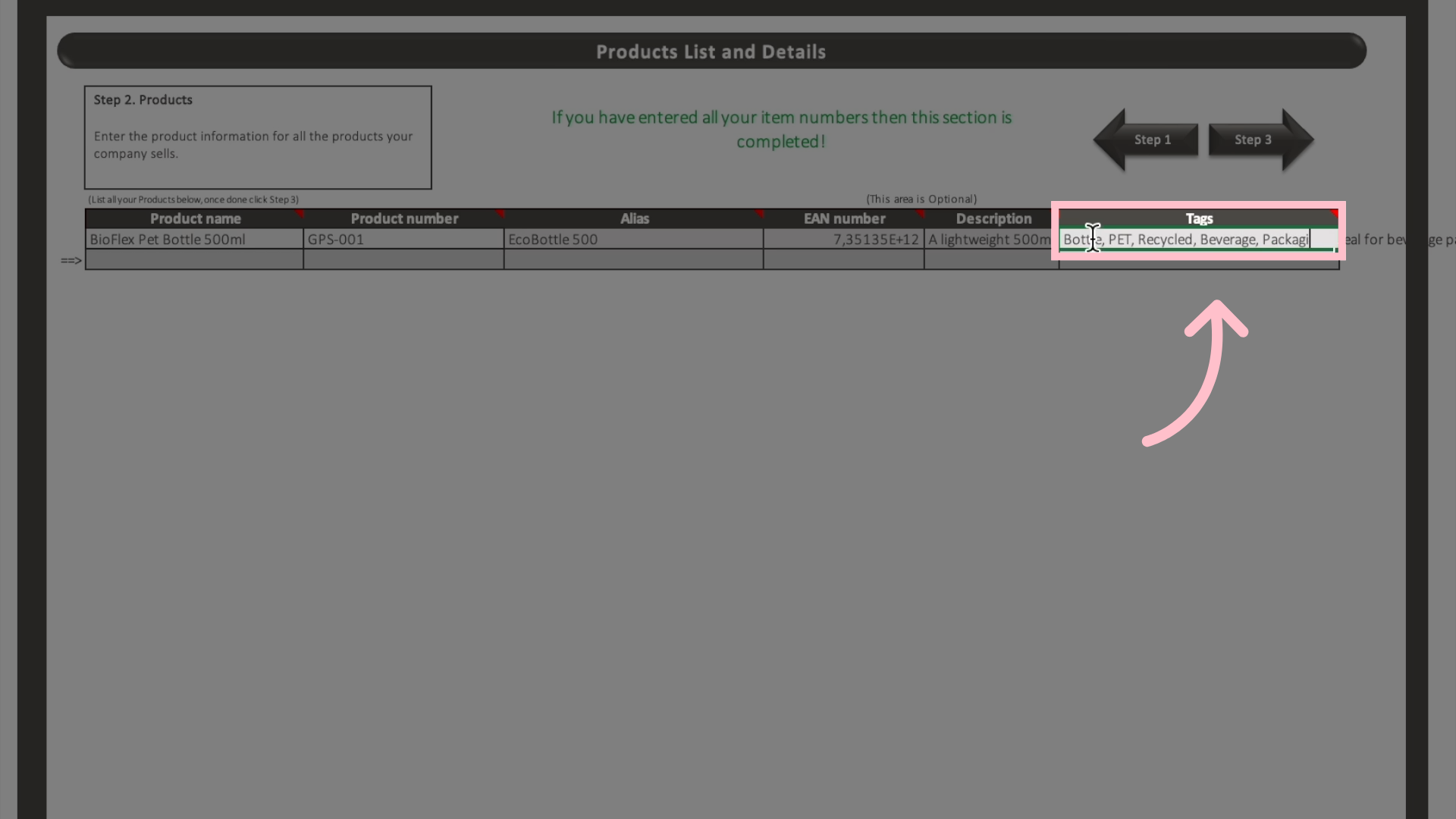
Keywords for filtering and grouping products.

Separate tags with commas.

The Supplier Information tab

Navigate to the Supplier Information tab at the bottom of the file.
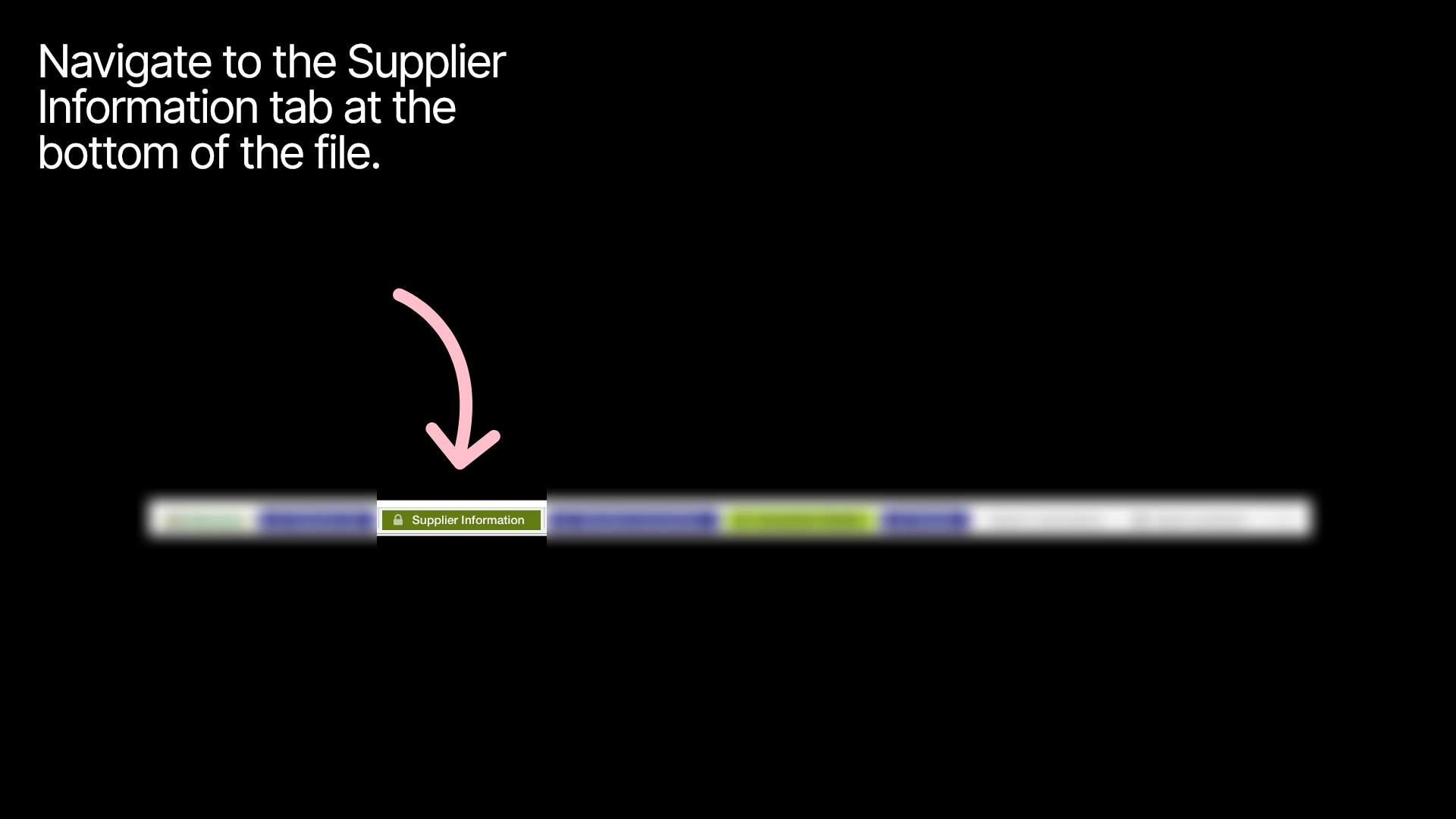
The Supplier Information tab

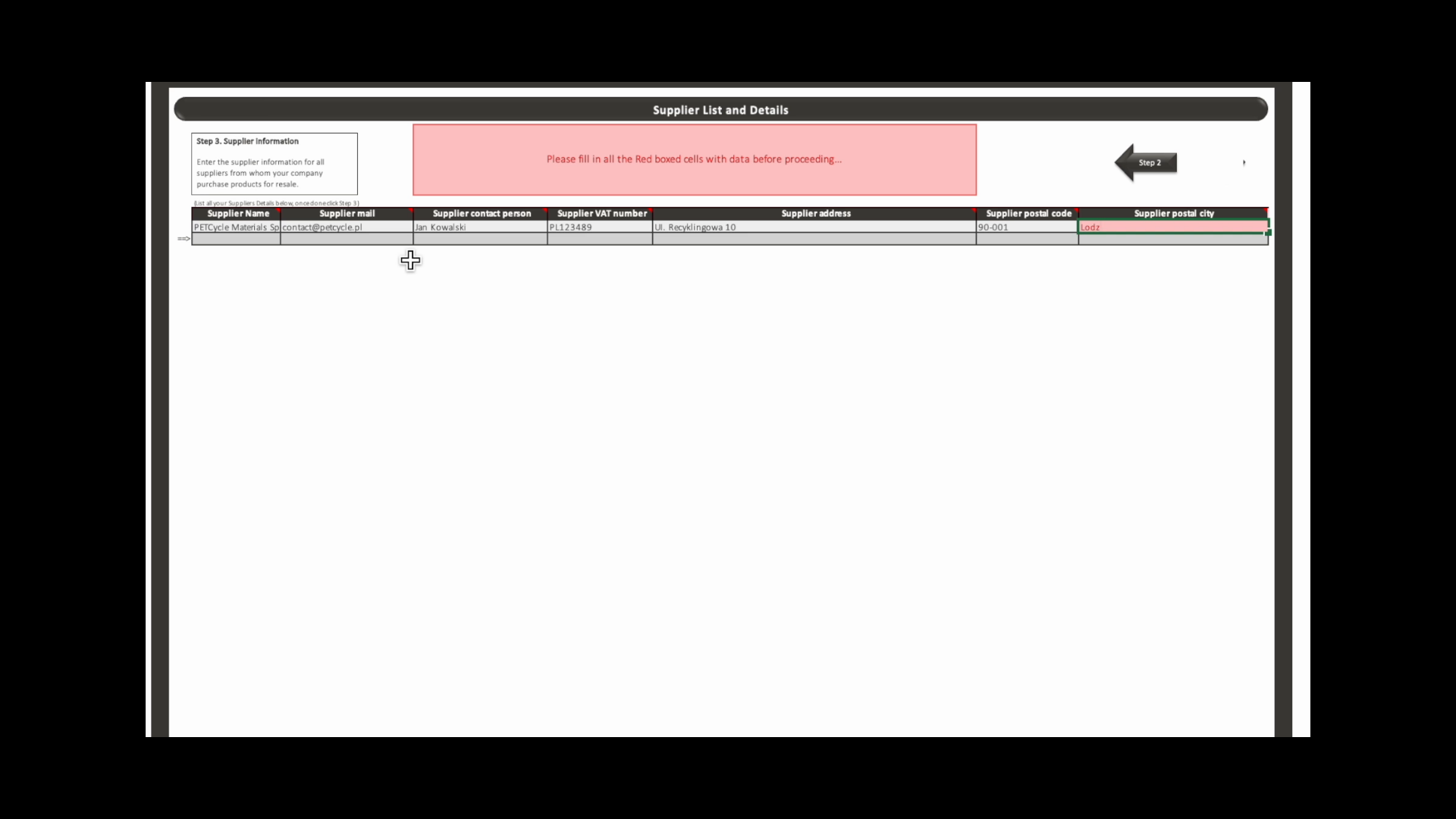
Notice that you add your suppliers here. Do not add yourself as a supplier.
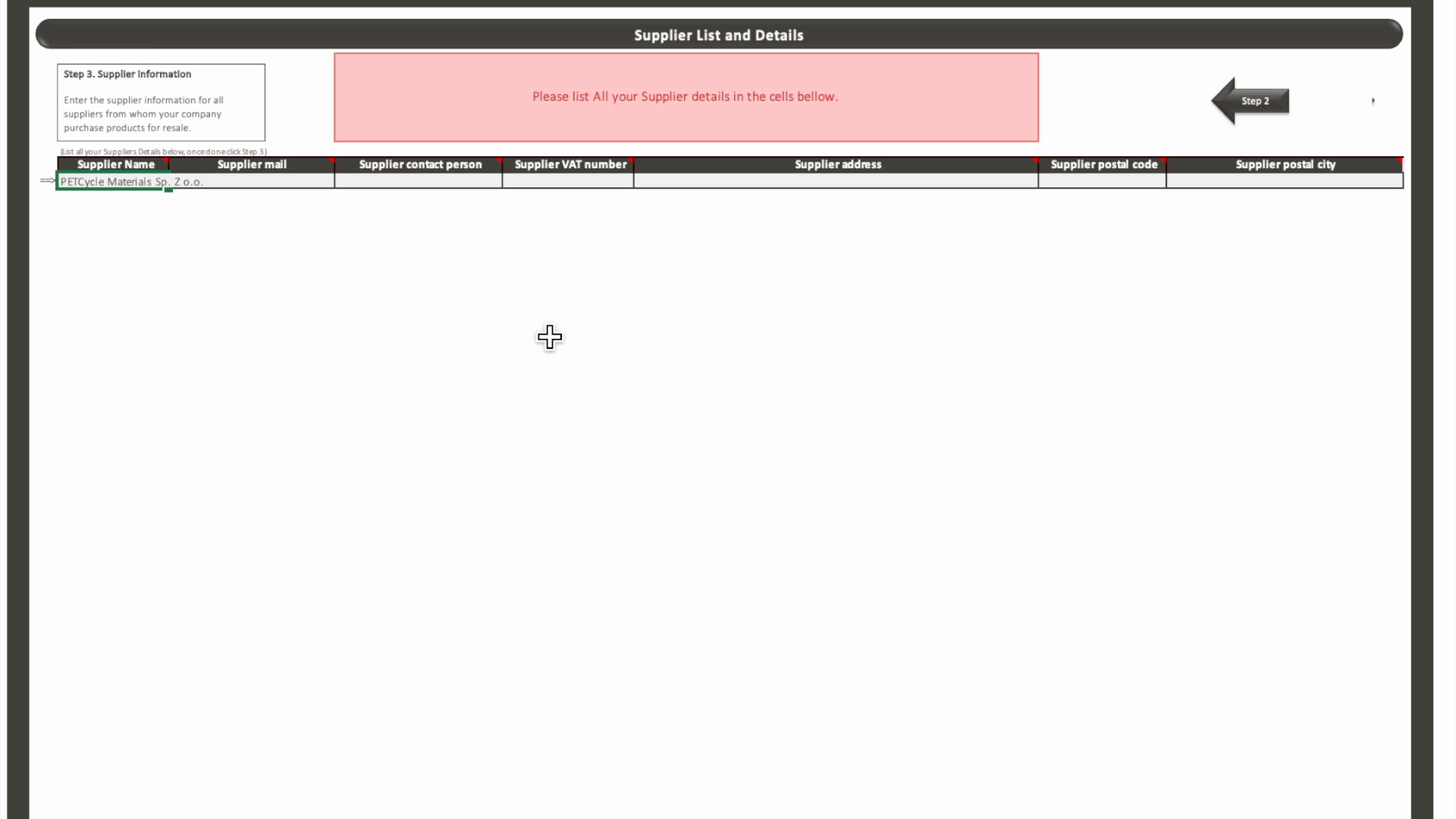
Add suppliers information
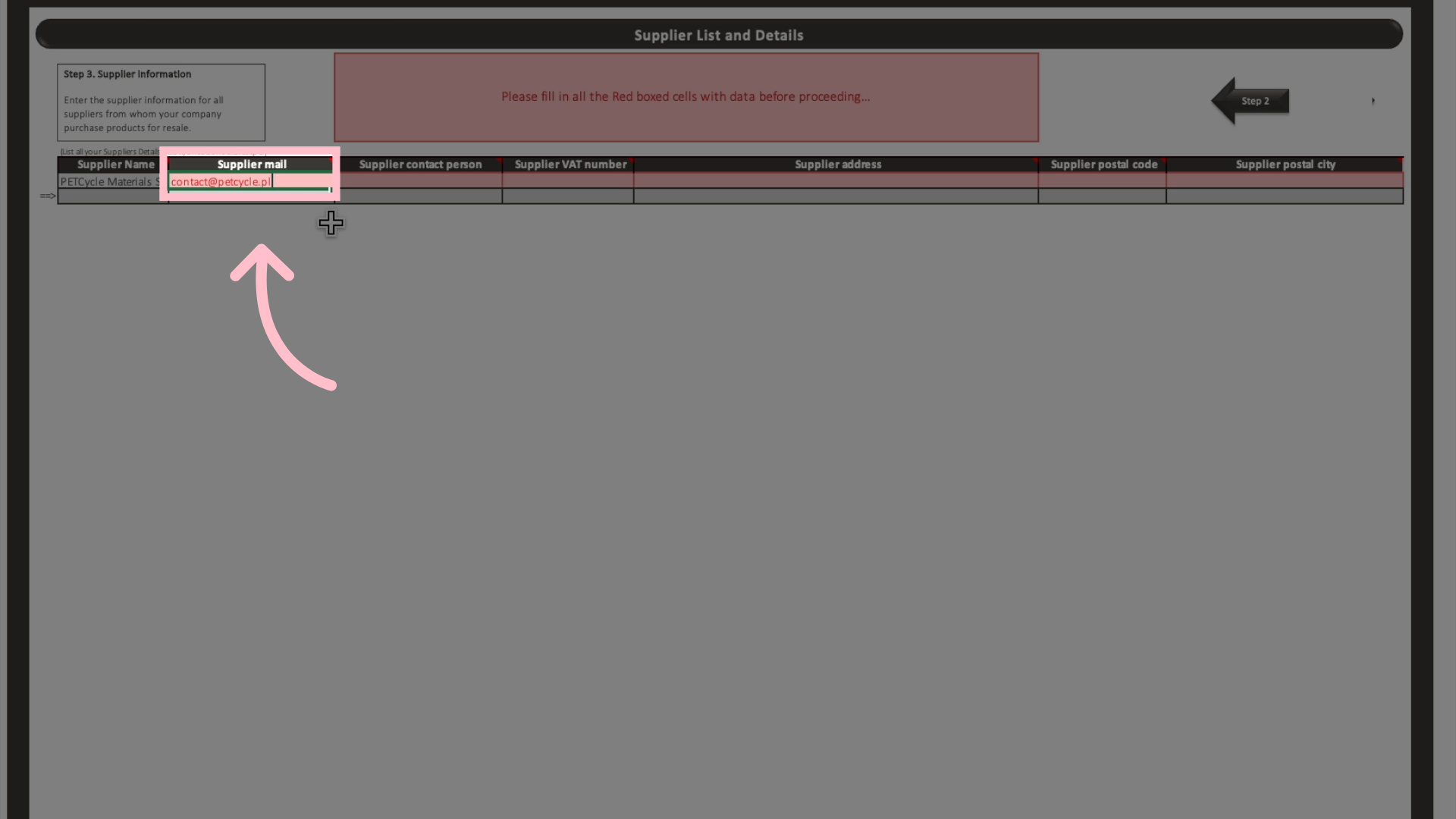
Add the email of your contact person for the supplier.
The email of your contact person for the supplier.
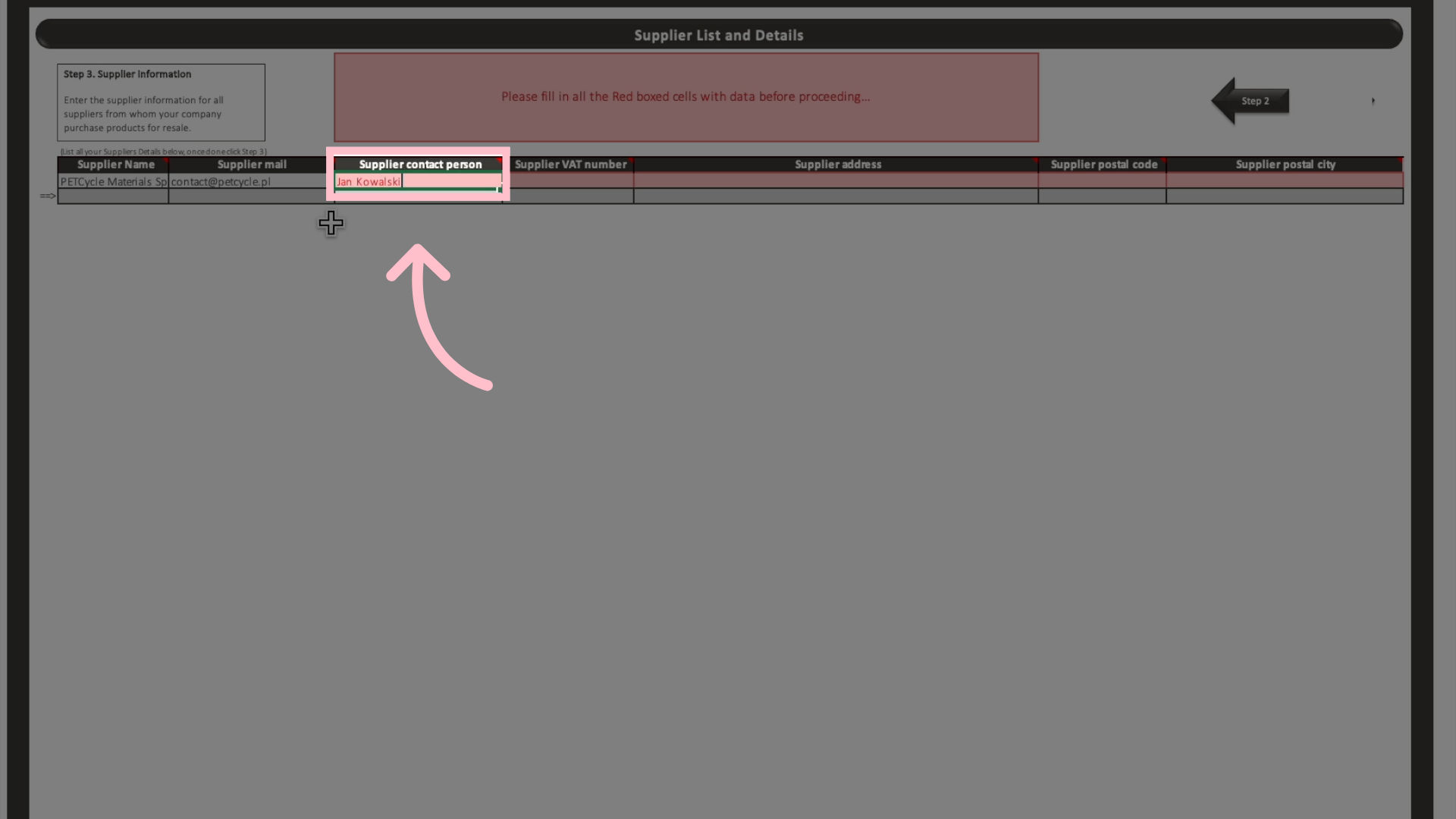
Add the name of your supplier’s contact person (ideally the same as the person associated with the email address).
Name of your supplier’s contact person (ideally the same as the person associated with the email address).
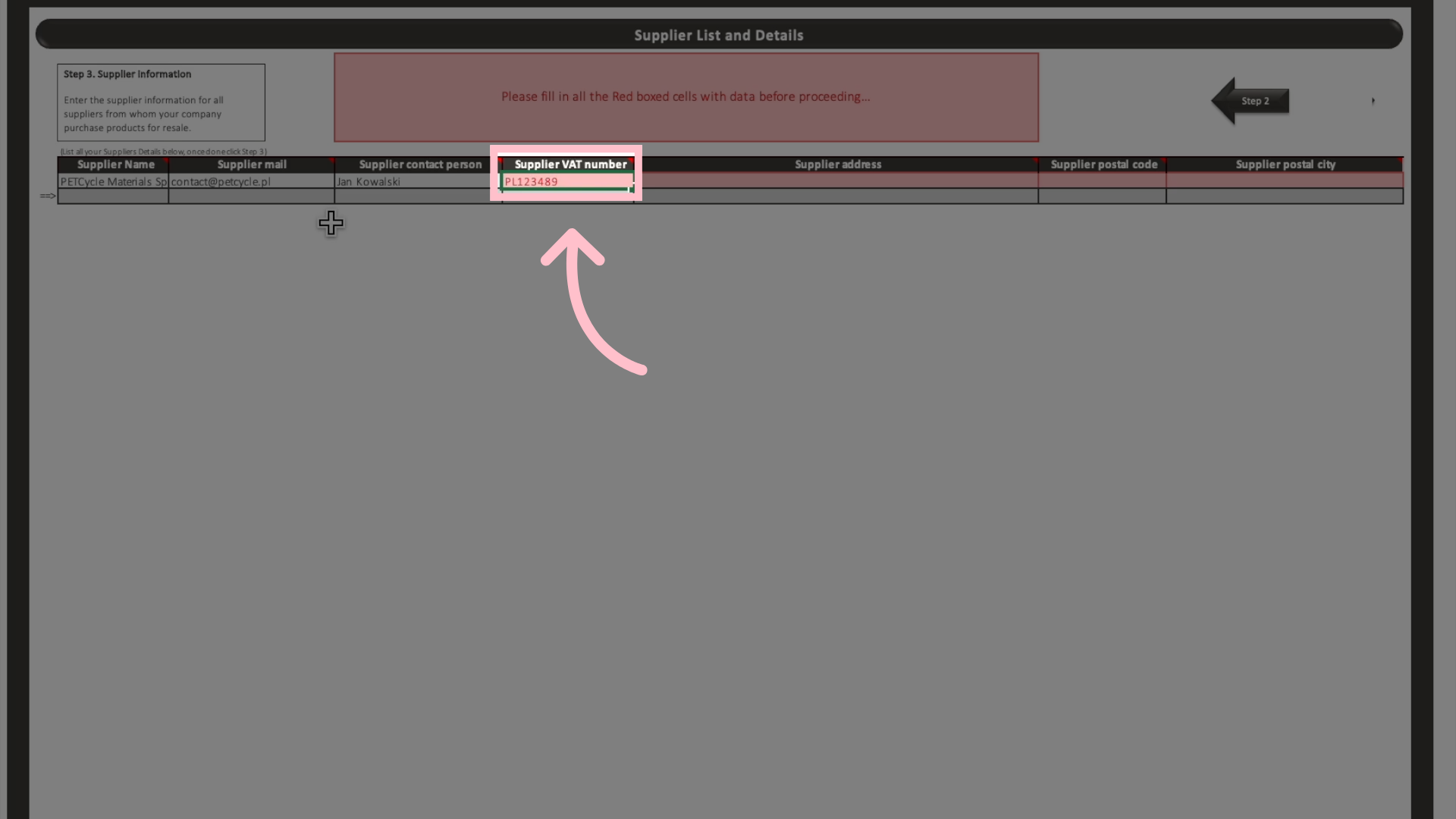
Add a VAT number or another number associated with the supplier. This helps Mitigater when connecting to the correct supplier further on.
VAT number usually starts with a country code (e.g., FR for France) followed by a series of digits.
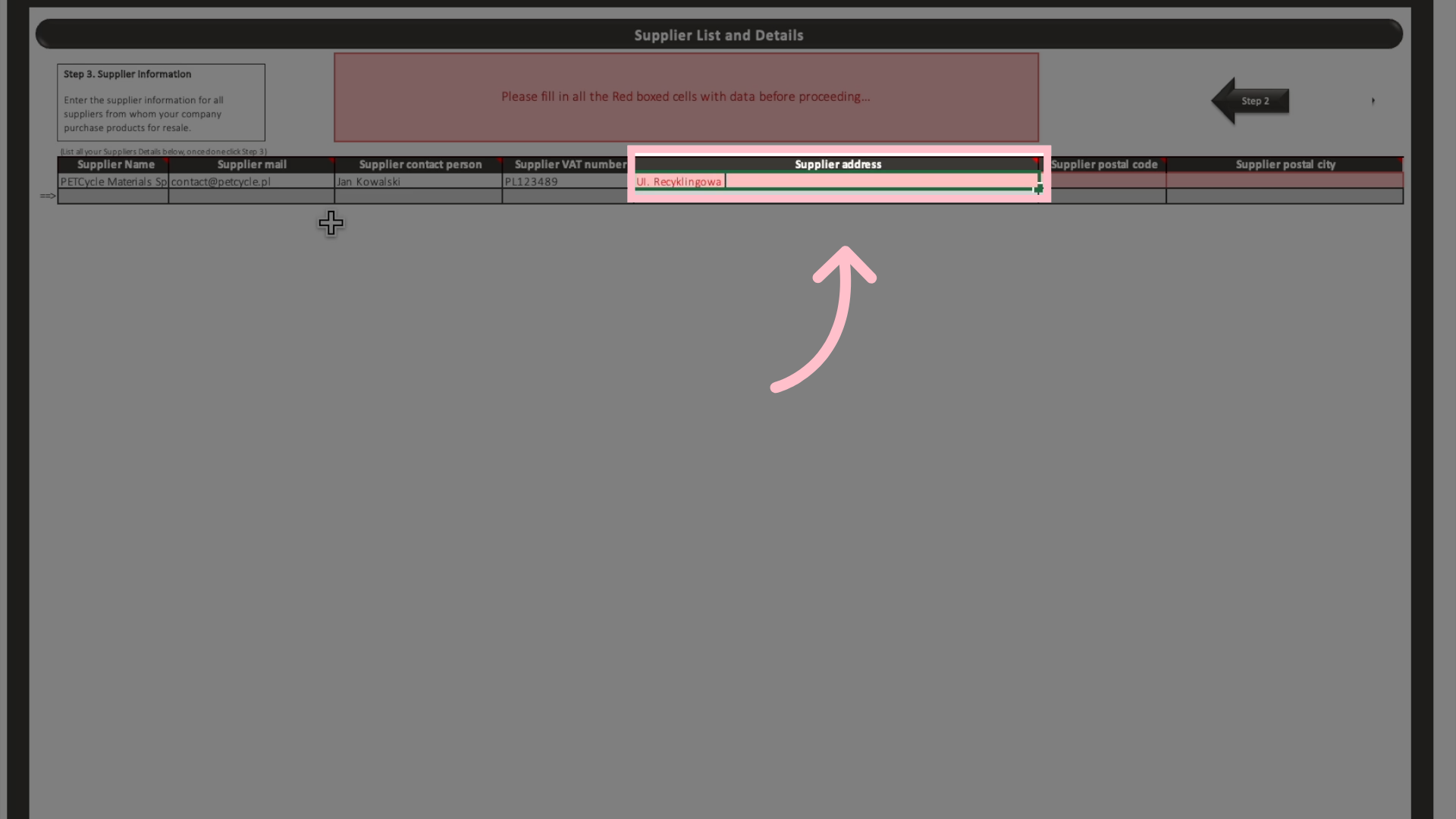
Add the physical address of the supplier.
The physical address of the supplier.
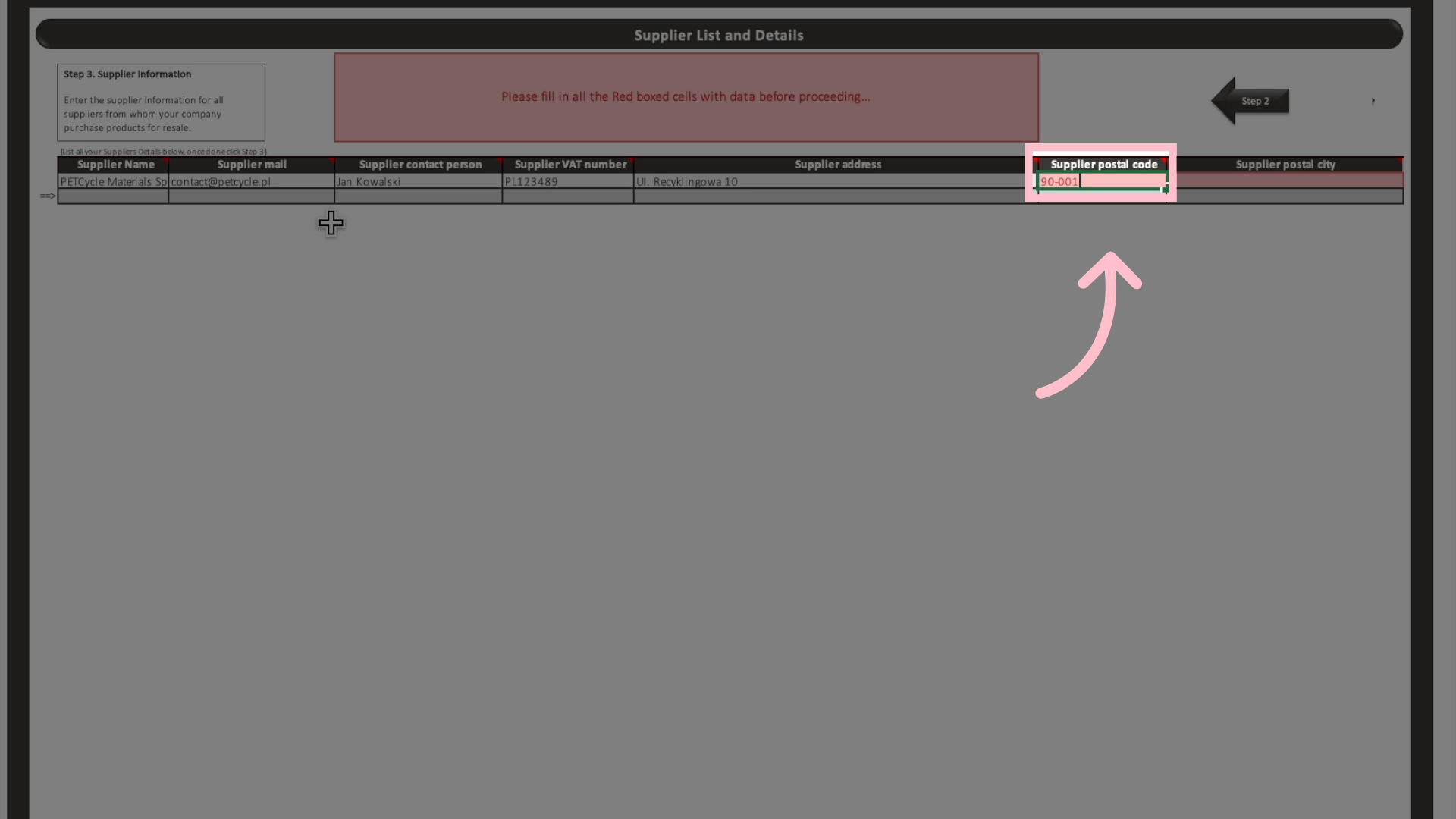
Add the postal code for the supplier’s location.
The postal code for the supplier’s location.
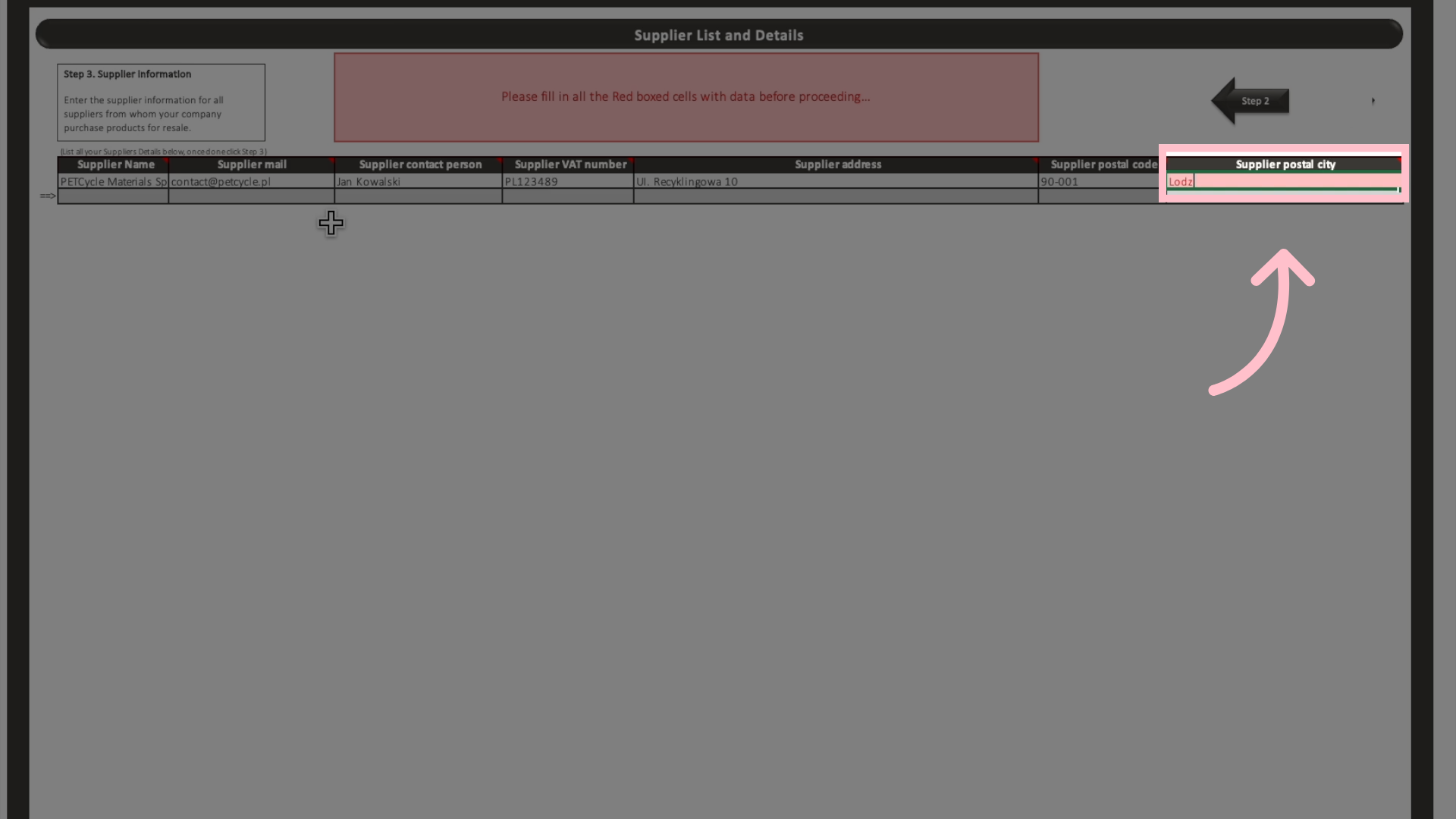
Add the city where the supplier is based.
The city where the supplier is based.
The informationen added here will be updated when a supplier added themselves in the system - to the values added by the supplier. This is used to connect the correct companies based on many different values.
suppliers.snabb (13) (3)

The Generate Connections tab

Navigate to the Generate Connections tab at the bottom of the file.
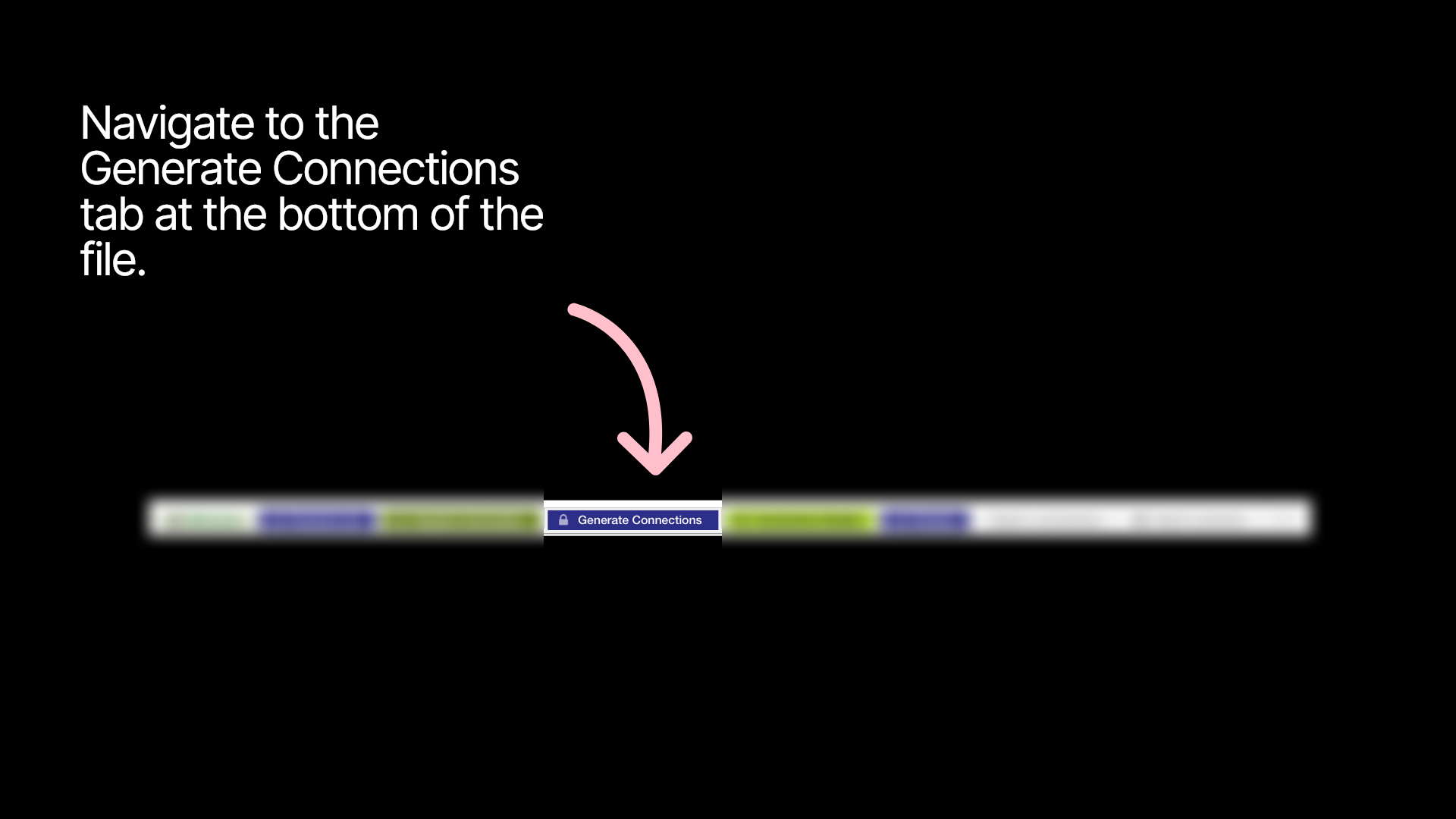
The Generate Connections tab

Enter the number of components, products or materials per product to be able to connect them to the correct amount of suppliers.
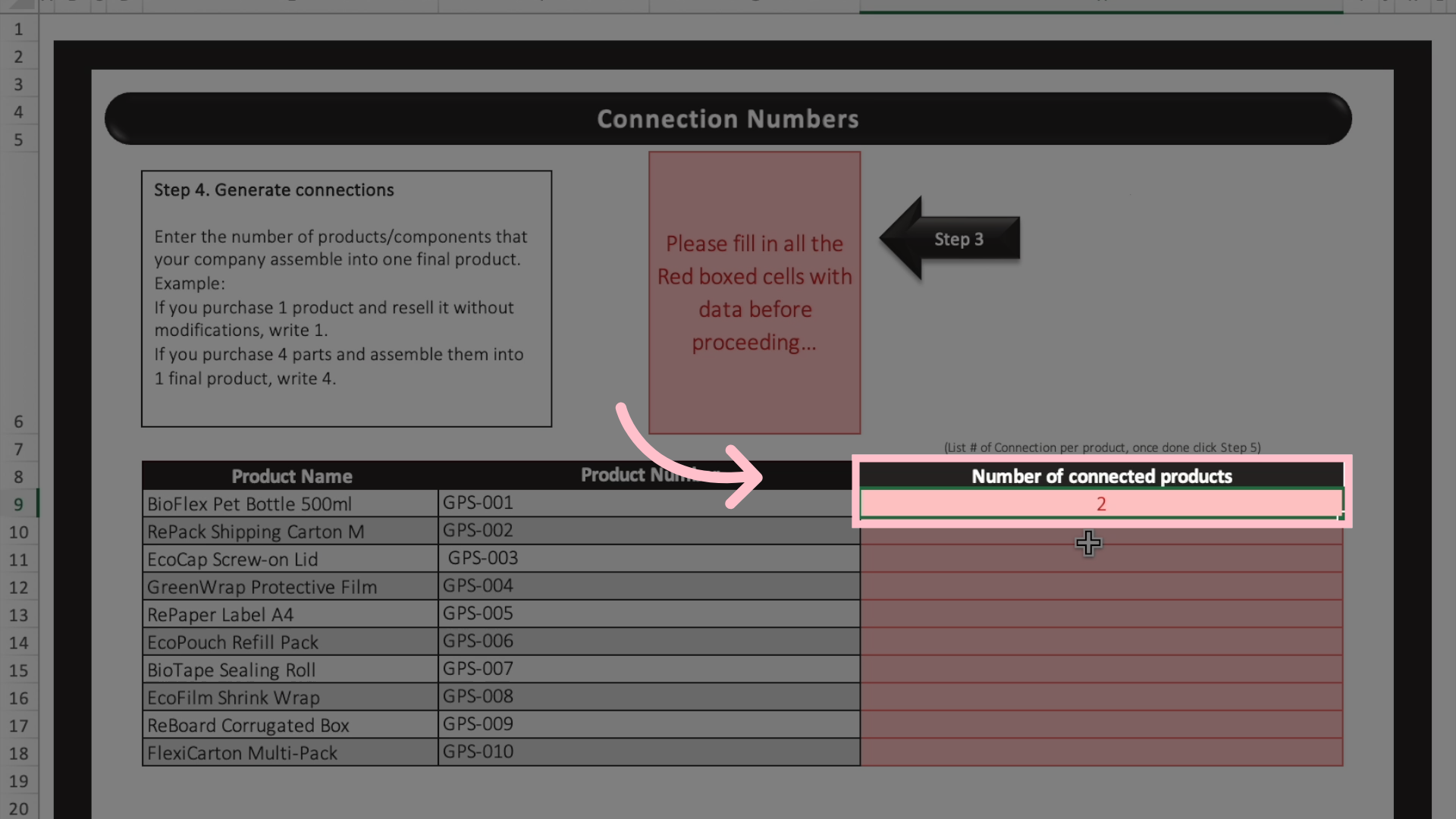
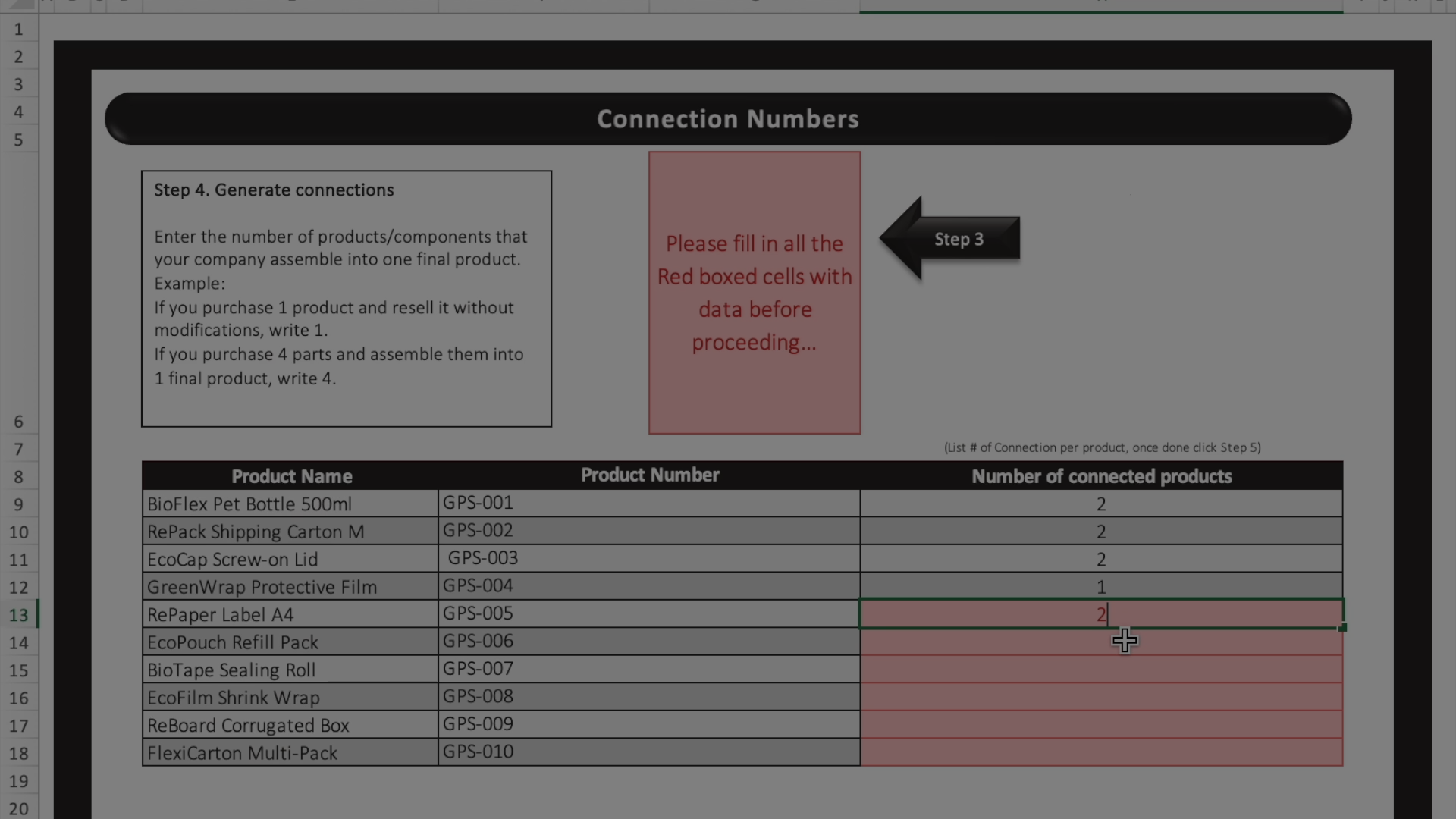
Connections
If you purchase one product and resell it unchanged, enter 1. If you purchase and assemble four parts into one final product, enter 4.
connection.numbers.snabb (3) (2)

The Connection Details tab

Navigate to the Connection Details tab at the bottom of the file.
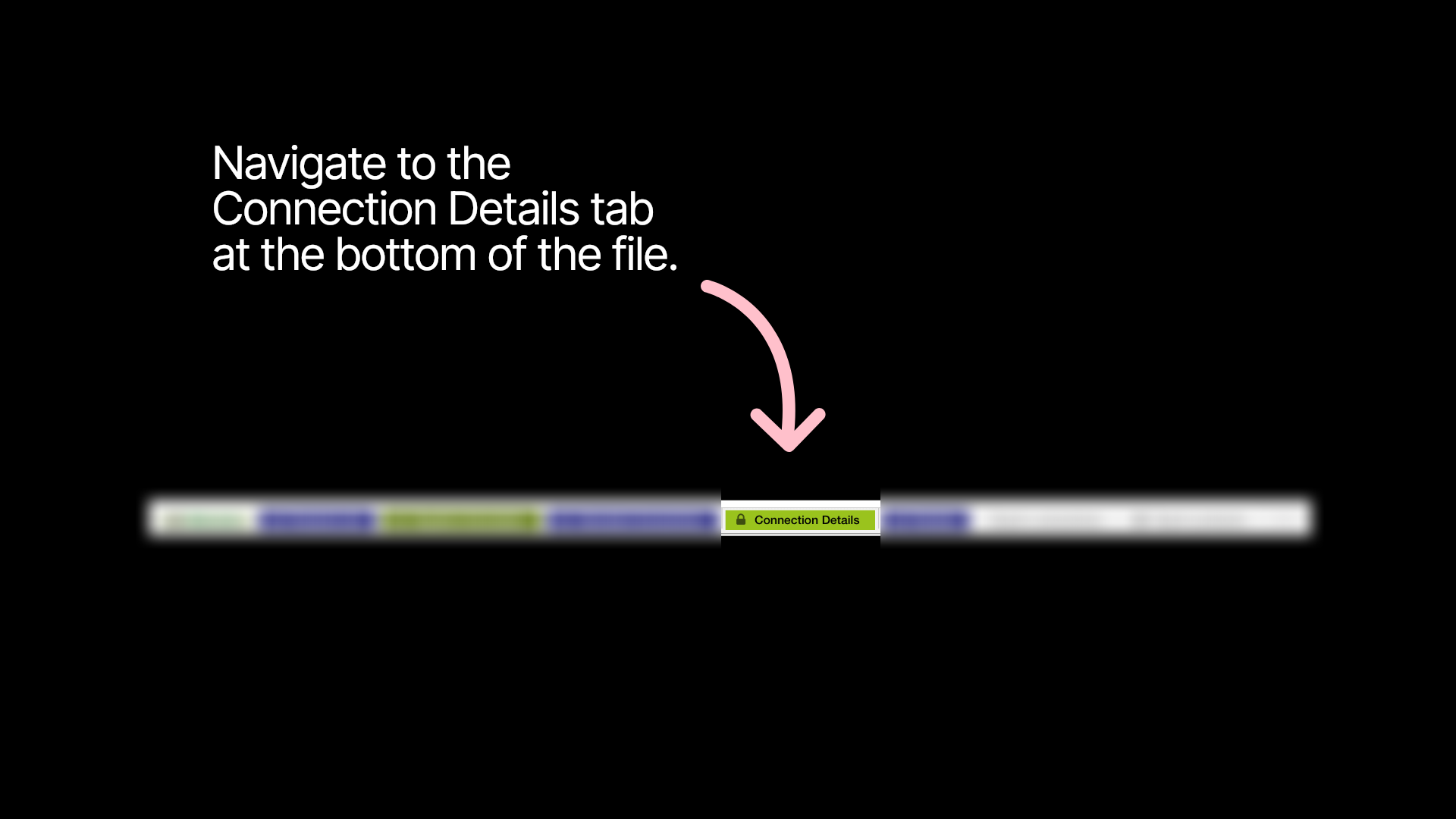
The Connection Details tab
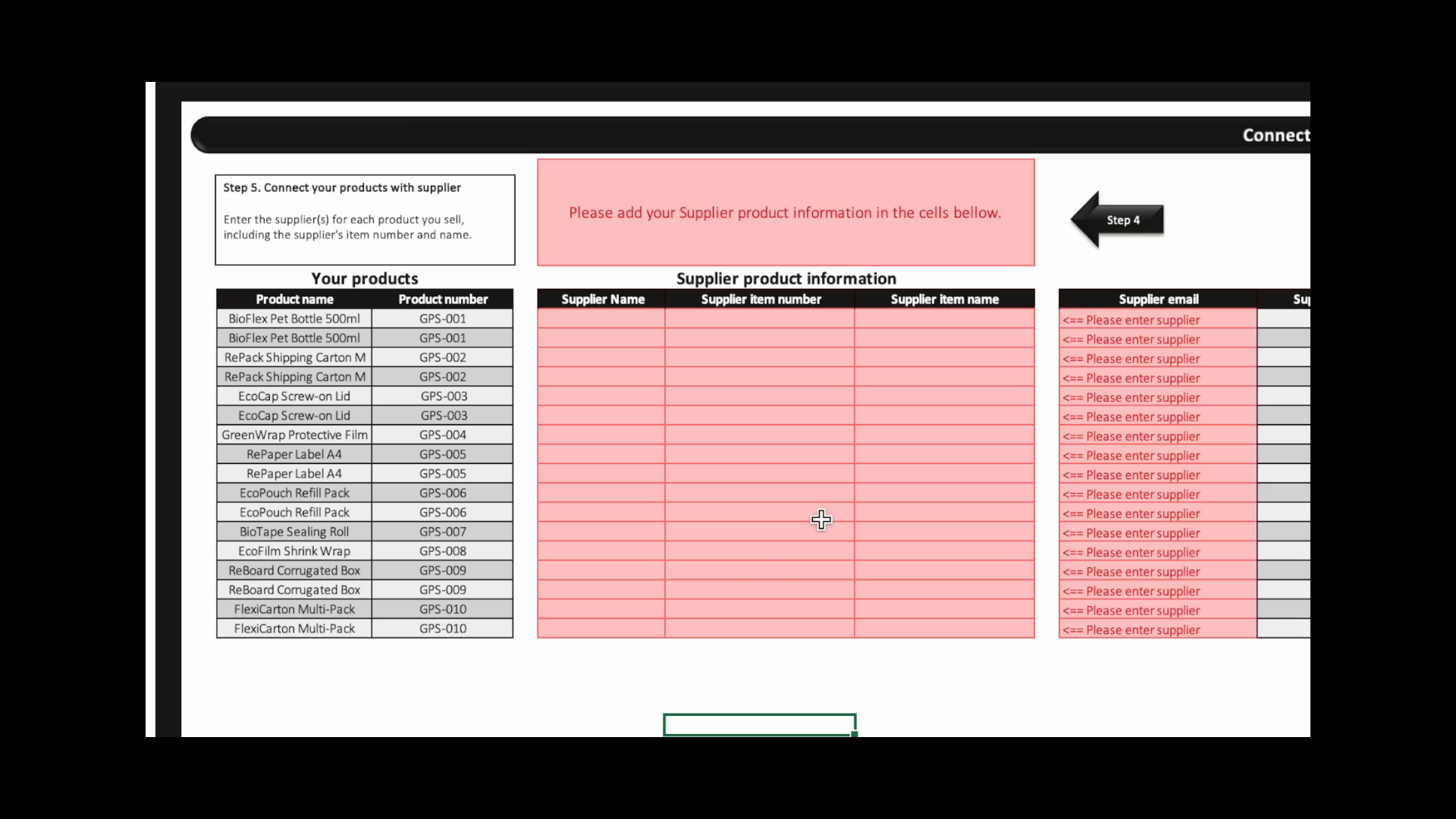
Time to put all the data together.
Supplier.products.snabb
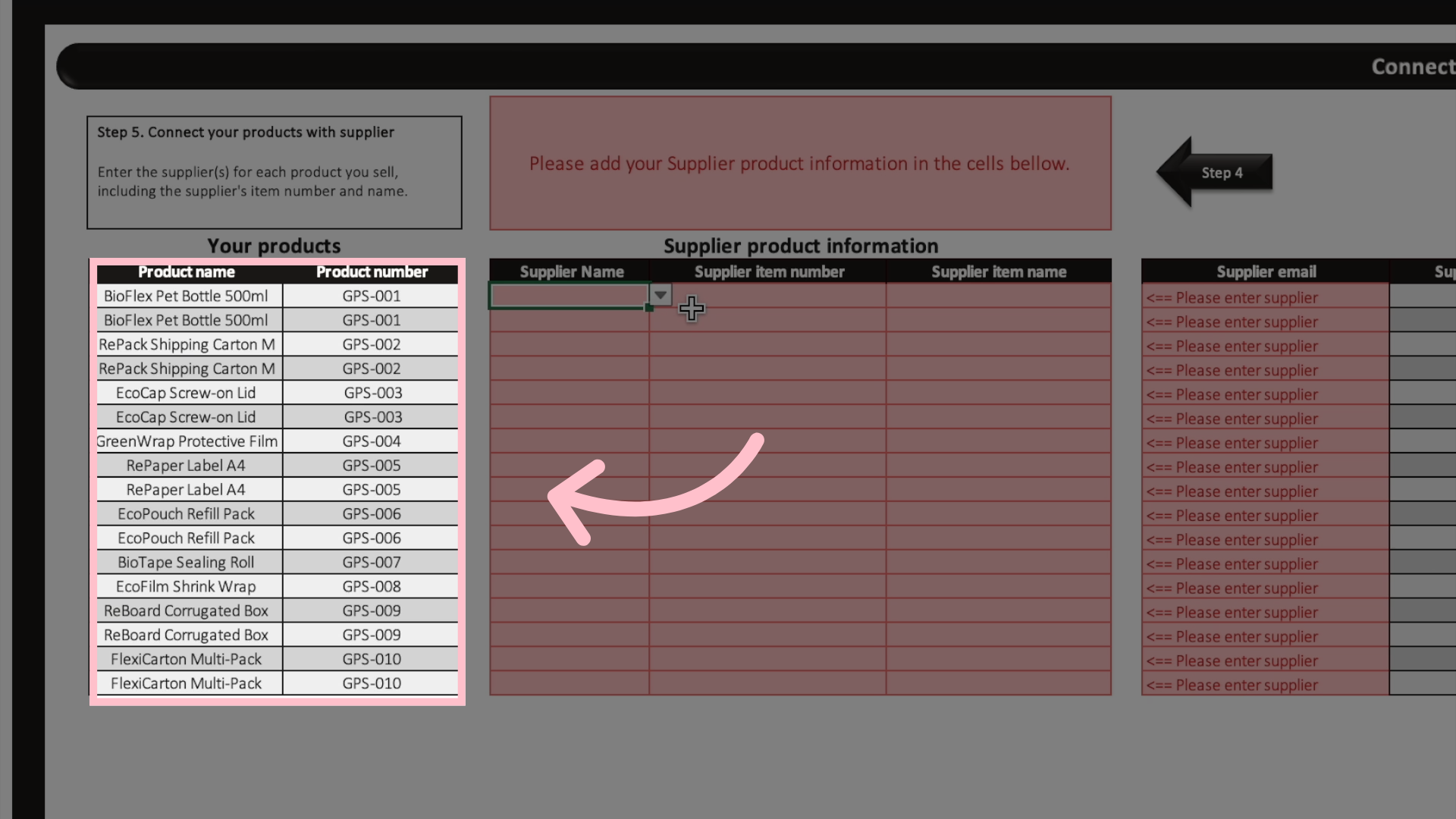
This part is prefilled with your products.
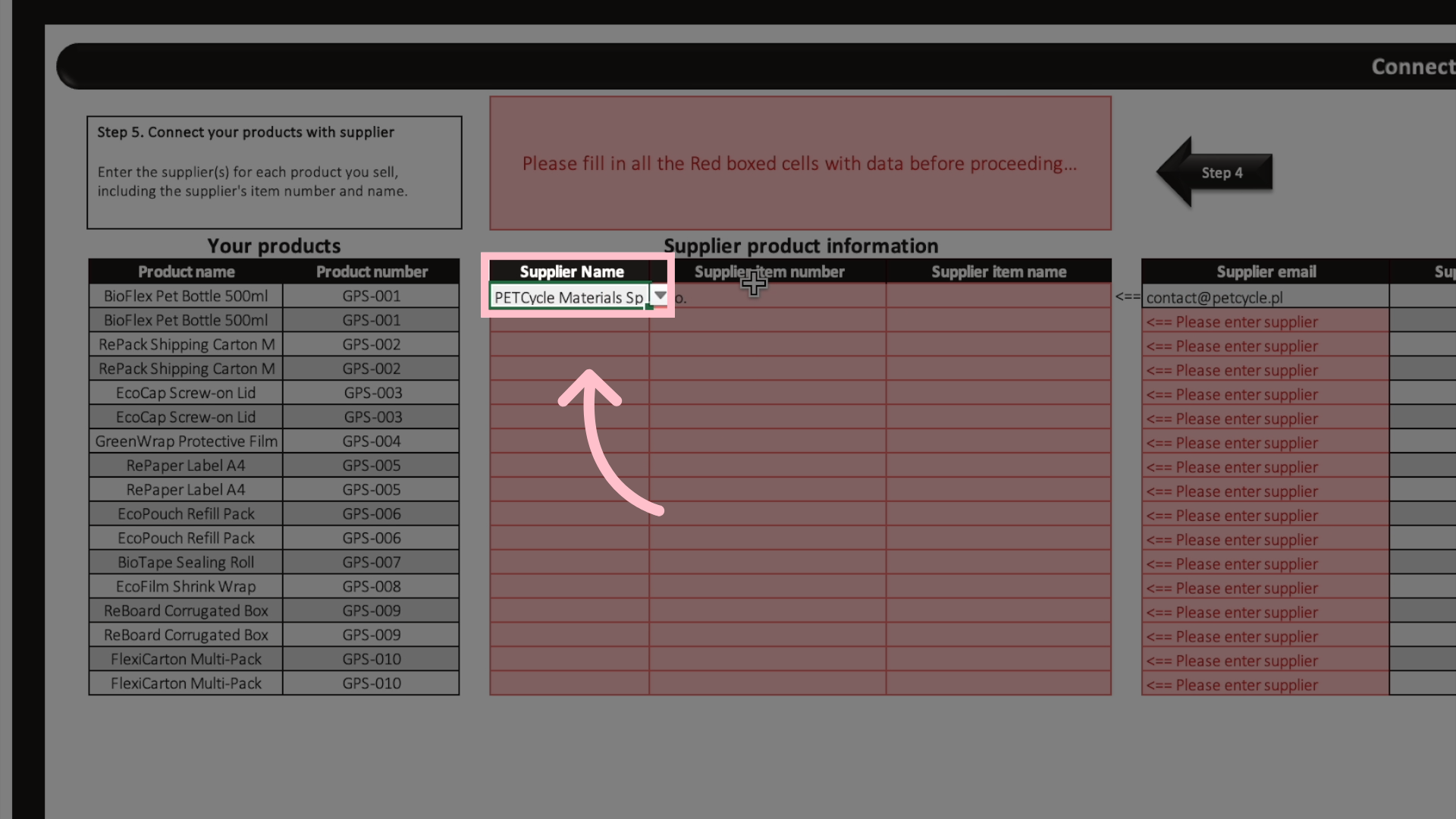
Pick supplier for each part of the product you sell
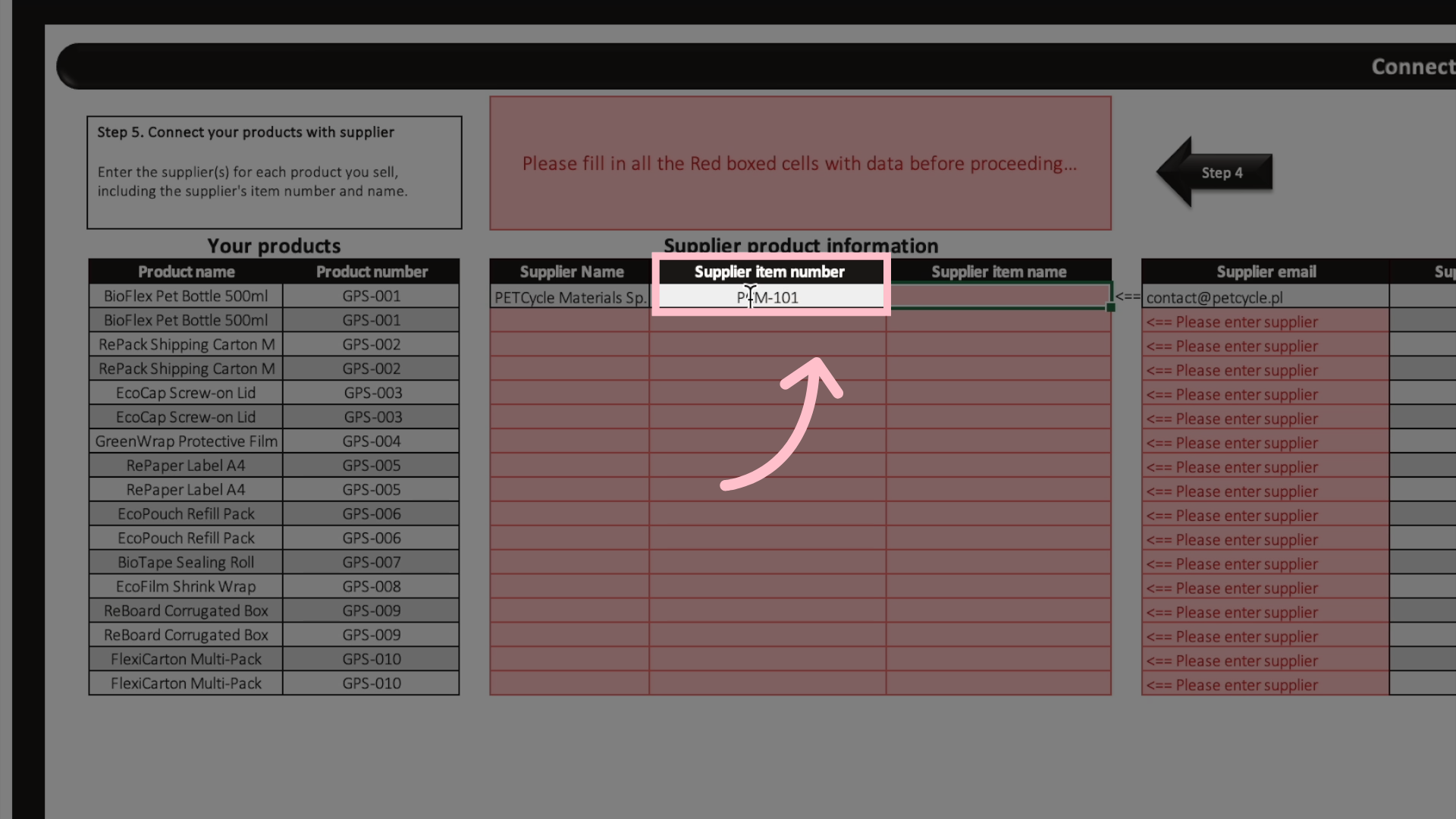
Type the unique supplier item number you use when buying the product from your supplier.
Type the unique supplier item number you use when buying the product from your supplier
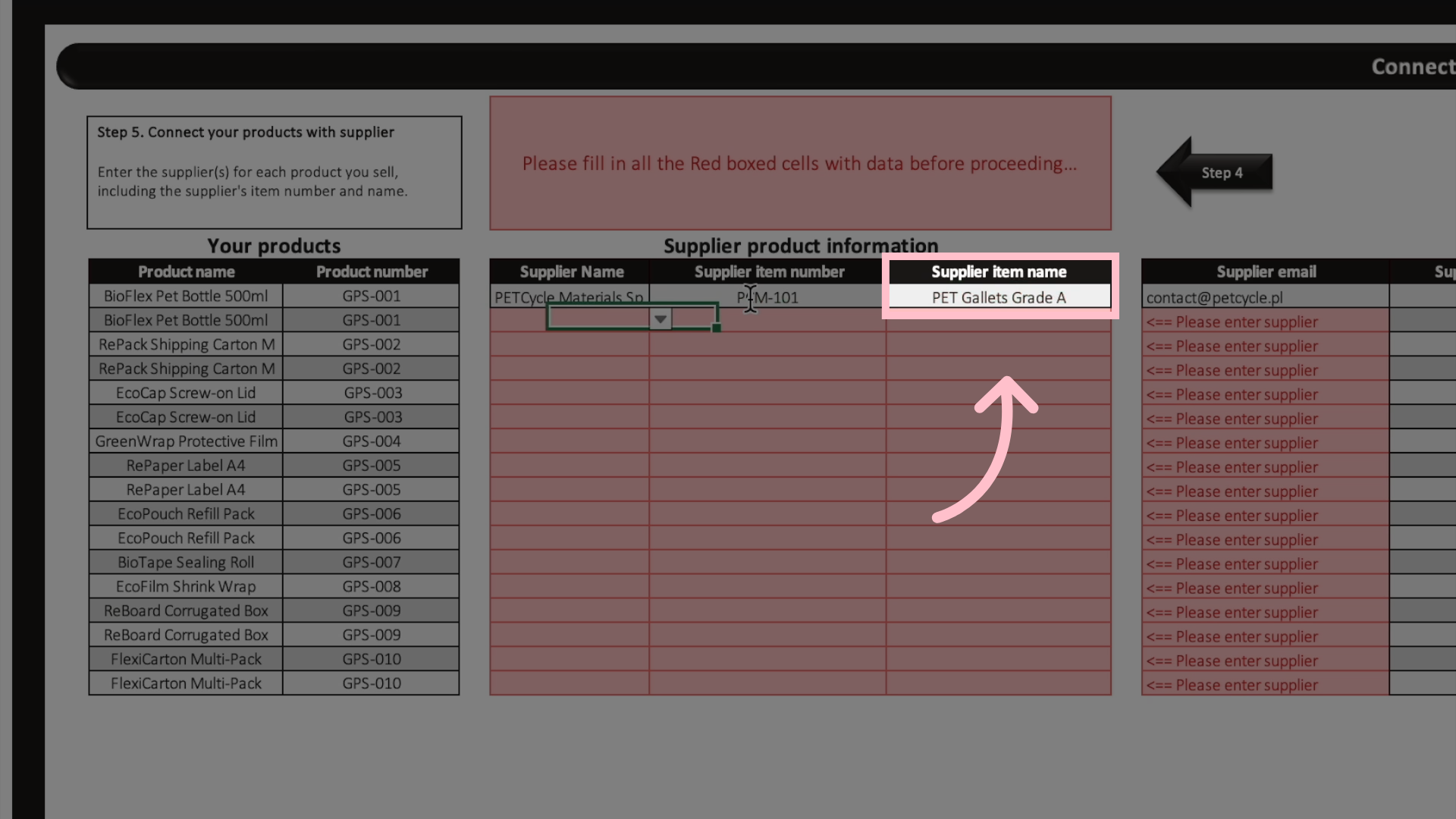
Type the name you use when buying the product from your supplier. It is important that your suppliers can understand what product you are referring to.
Type the name you use when buying the product from your supplier
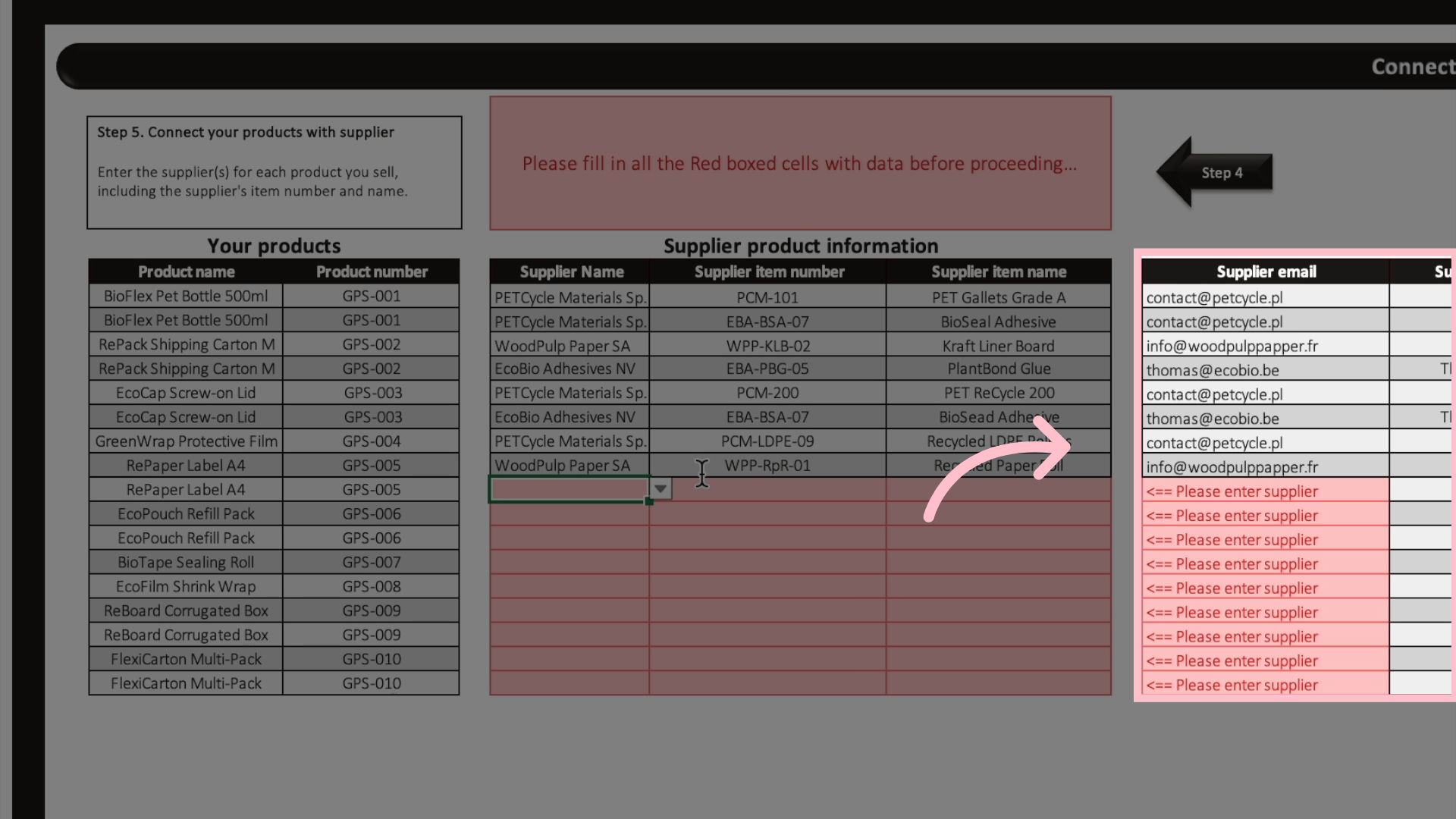
This part of the file is pre-filled based on the supplier you picked for each product.

The Finished tab

Navigate to the Finished tab at the bottom of the file.
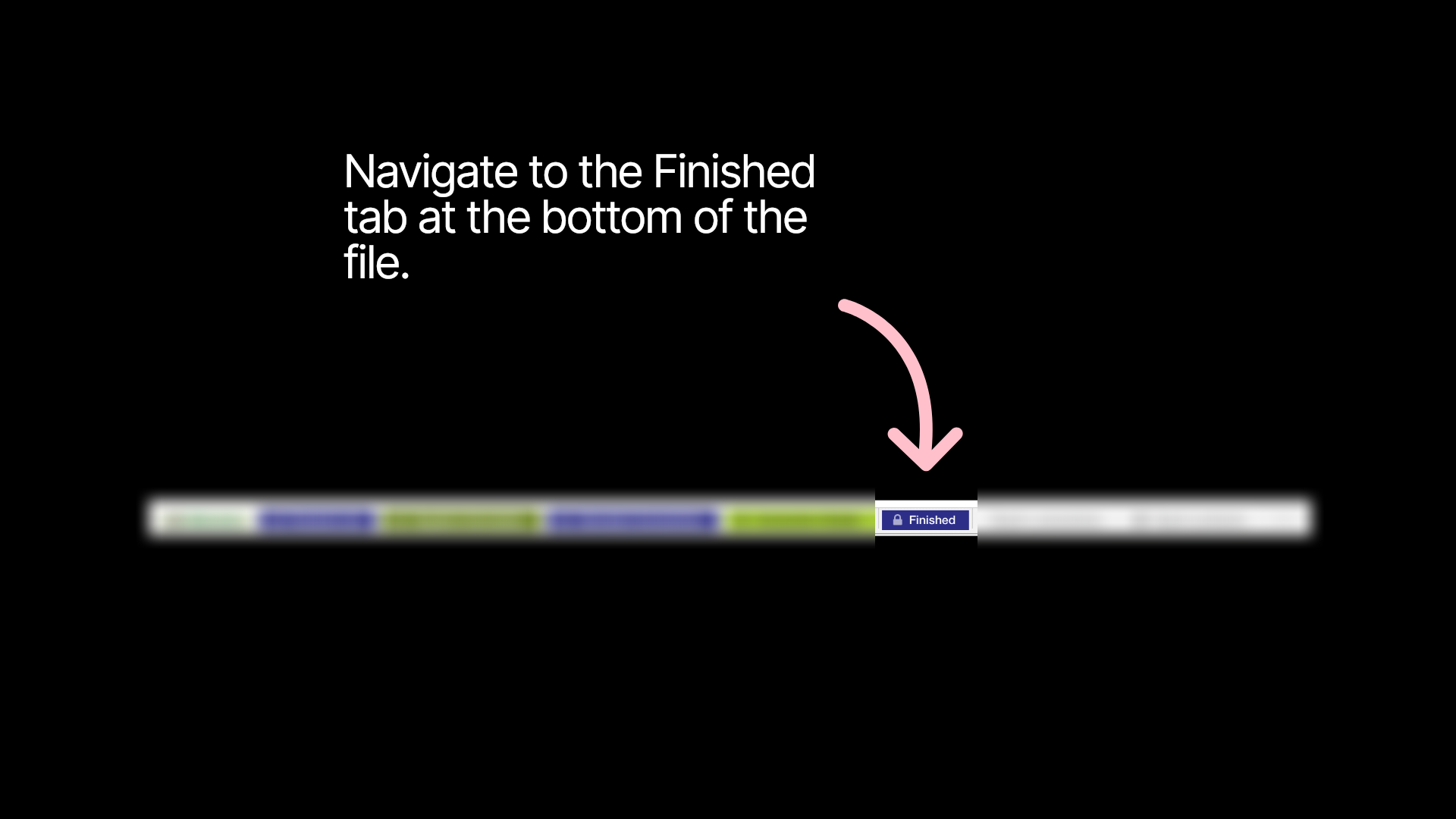
The Finished tab

Once done

Congratulations! You filled out the file for products and connections. Now save the file and email it to file@mitigater.com. We will get back to you if the data is okej for importing in Mitigater.
Once done.
Next step: Once your products are imported after a request from your client you want to learn how to handle unhandled received connections.

Or


Next step: If you have no unhandled received connections. The next step is to invite your suppliers.