Use AI to audit suppliers
When you add a new supplier, Mitigater can kick off an AI audit that searches public sources for certificates the supplier holds. You review each finding and decide whether to approve or reject it. This guide walks you through running an AI audit from the add-supplier flow, using Stora Enso AB as the example.
Open the add-supplier form
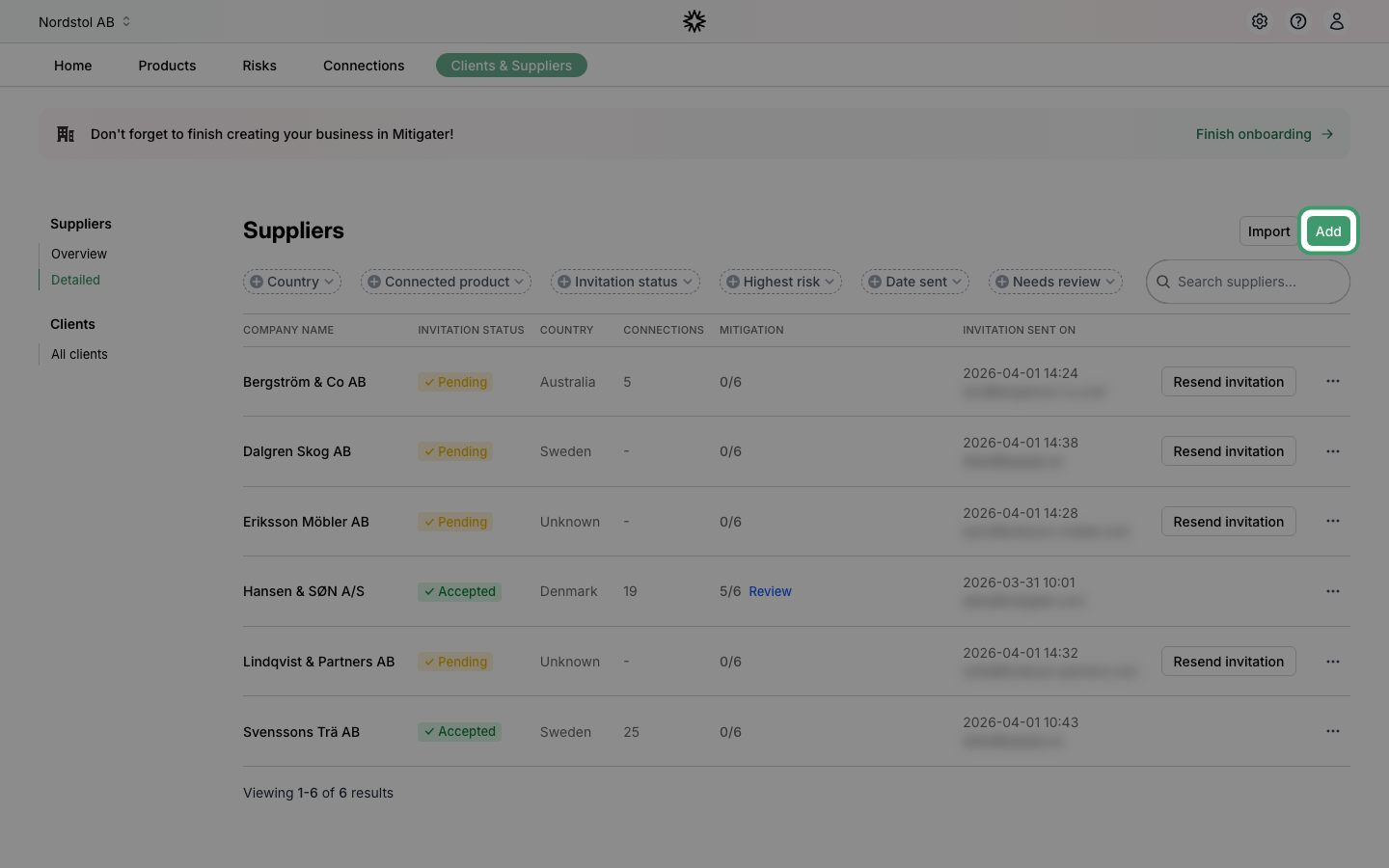
Go to Clients & Suppliers and click Add in the top right of the suppliers list.
Fill in the supplier and tick "Run an AI audit immediately"
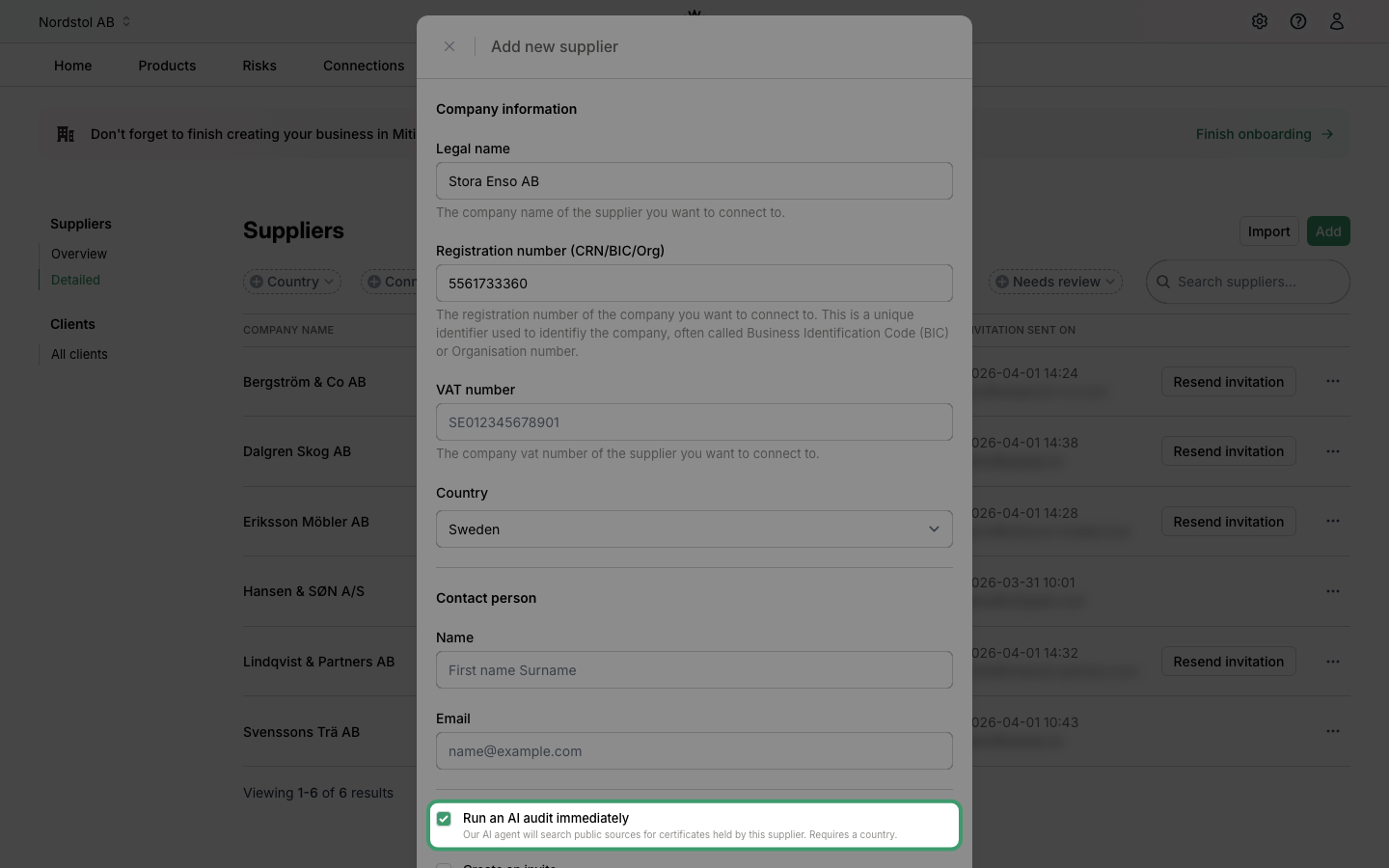
Enter the supplier's legal name, registration number, and country — the country is required before the AI audit checkbox can be enabled. For this example we use Stora Enso AB, registration number 5561733360, country Sweden. Then tick Run an AI audit immediately. You can leave the contact person empty if you don't want to invite the supplier yet.
The audit runs in the background
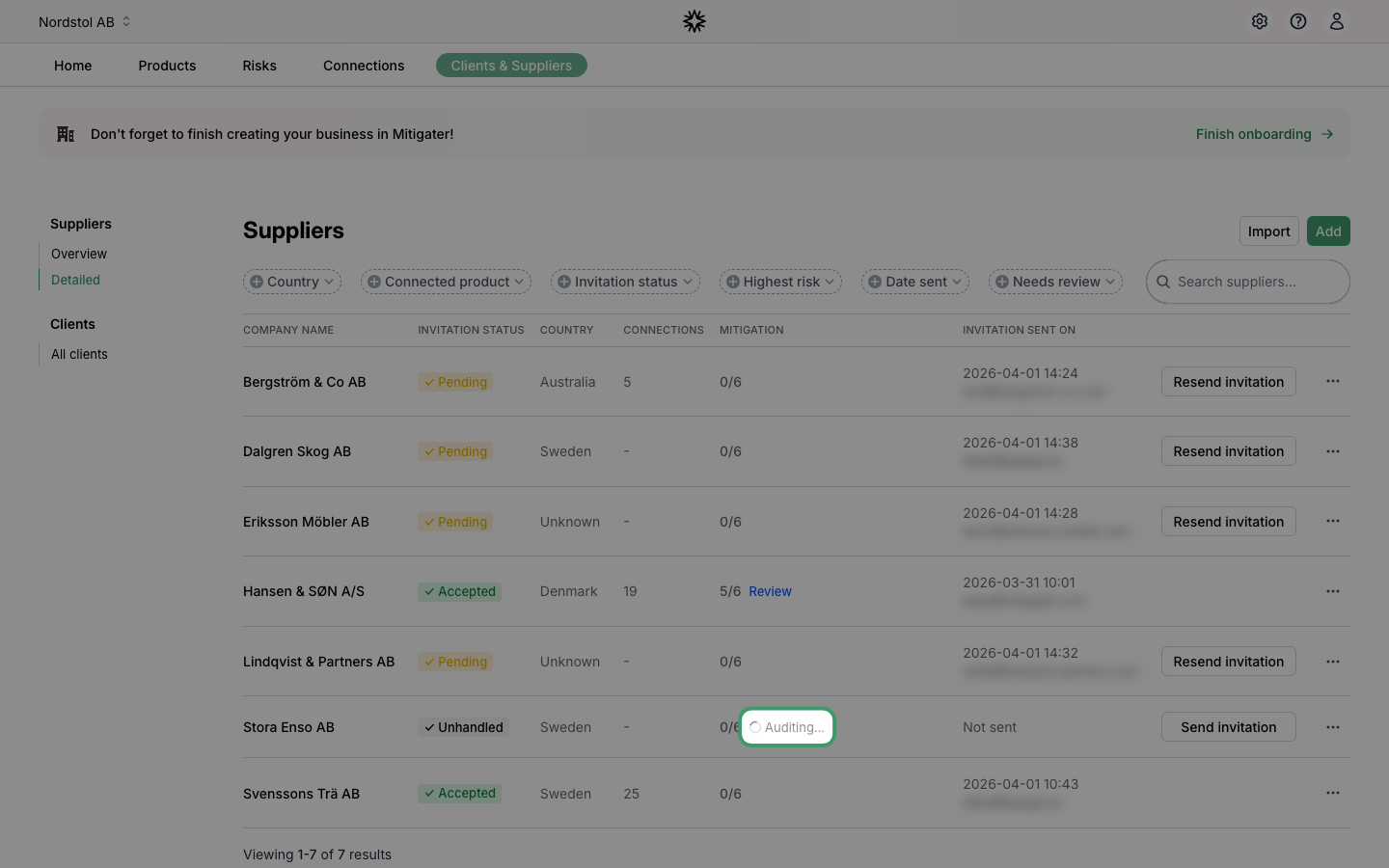
After you click Continue, the supplier is created and the audit starts immediately. You'll see an Auditing… indicator in the Mitigation column while our AI agent searches public registries, company websites, and certificate databases. You can keep working — when the audit finishes, the row updates automatically.
Open the results
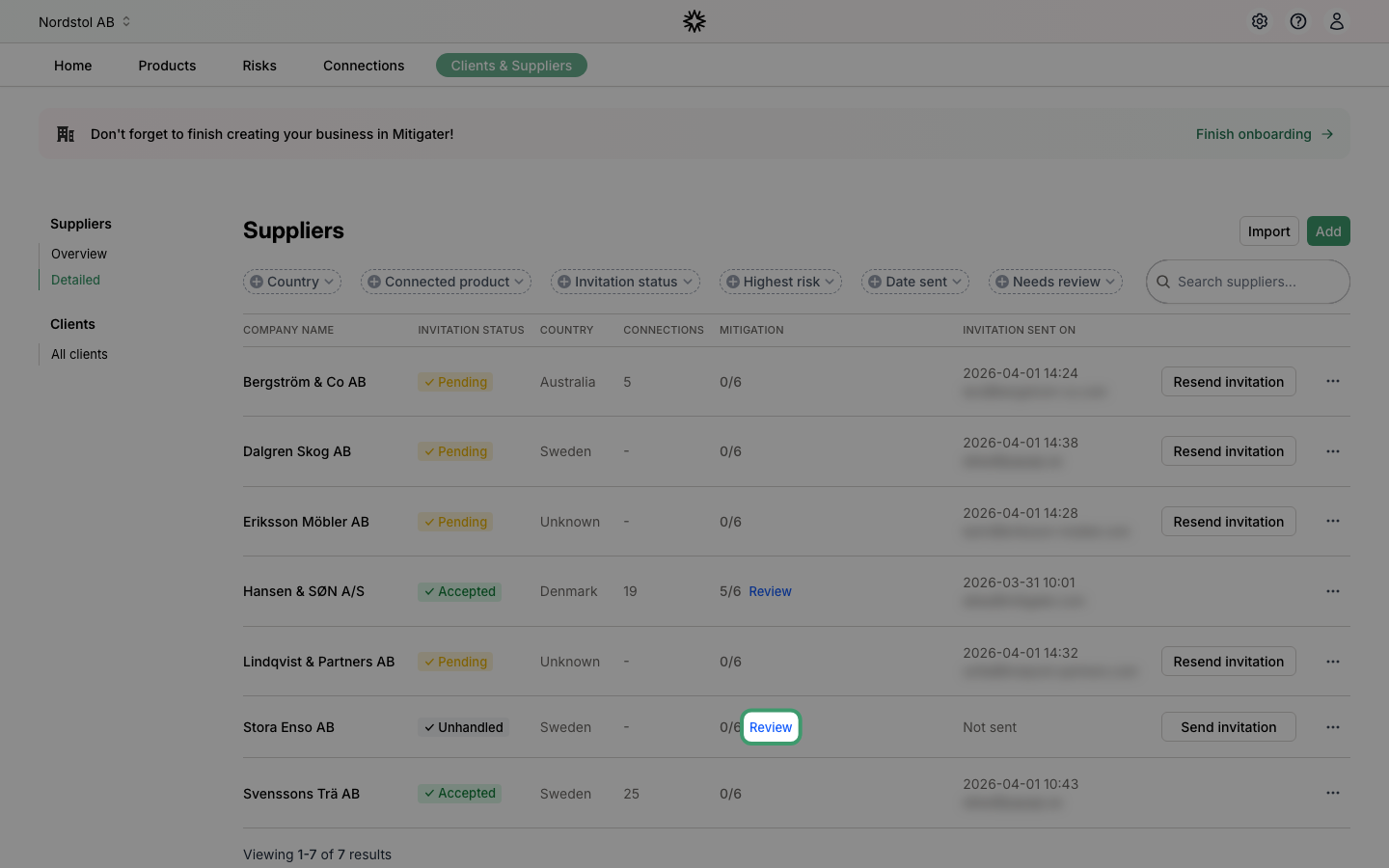
When the audit completes, a blue Review link appears next to the mitigation count. Click it to open the results panel.
Read the findings
Each card is one certificate the AI found evidence of. A confidence percentage tells you how sure the AI is — higher confidence comes from verified sources like PDFs on certificate registries; lower confidence comes from plain mentions on a company page. The Source link lets you open the original page to check it yourself. AI results can be inaccurate — always verify before approving.
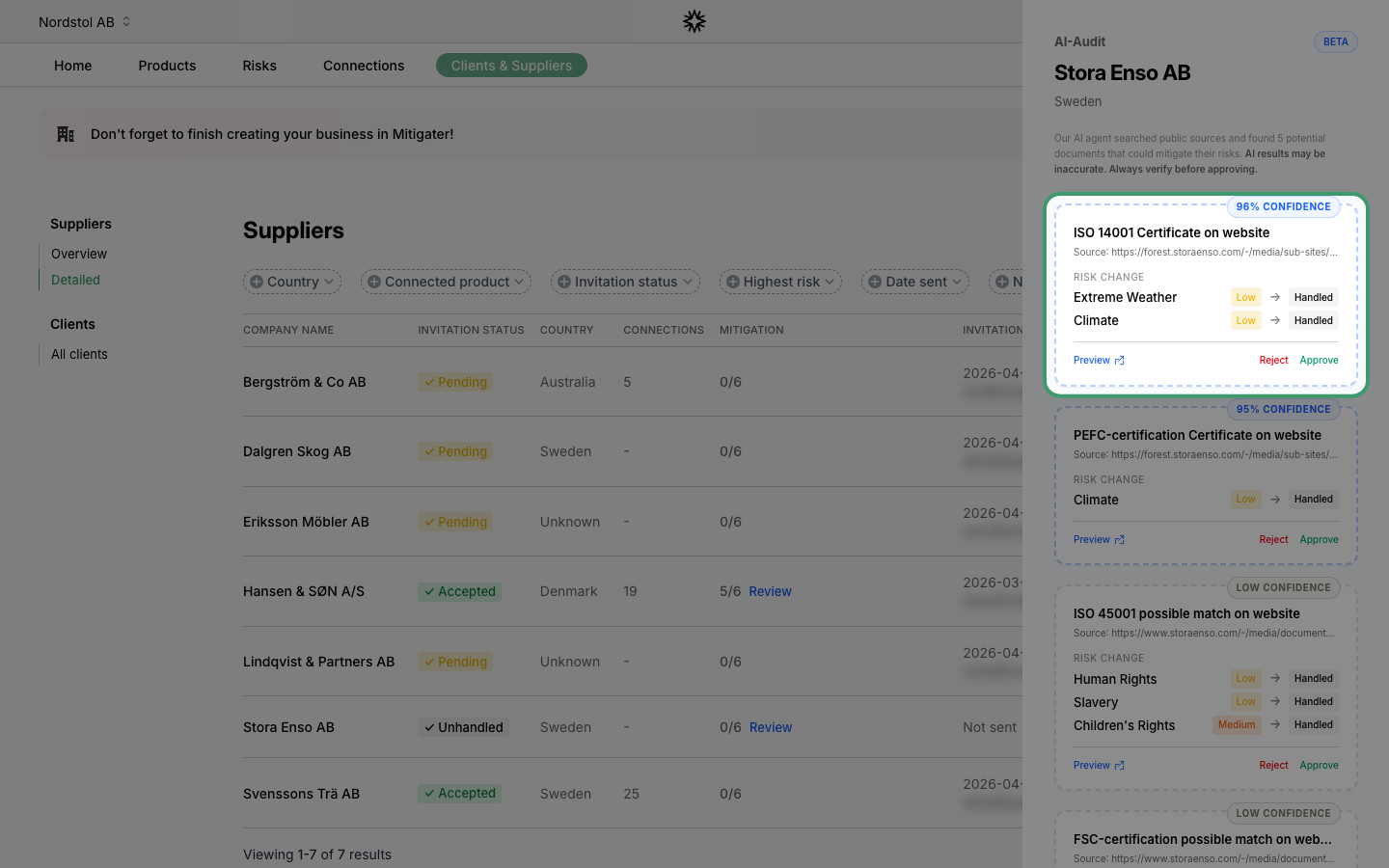
Approve a result
If the source confirms the certificate is real and valid, click Approve. The risks the certificate covers will be marked as handled for this supplier.
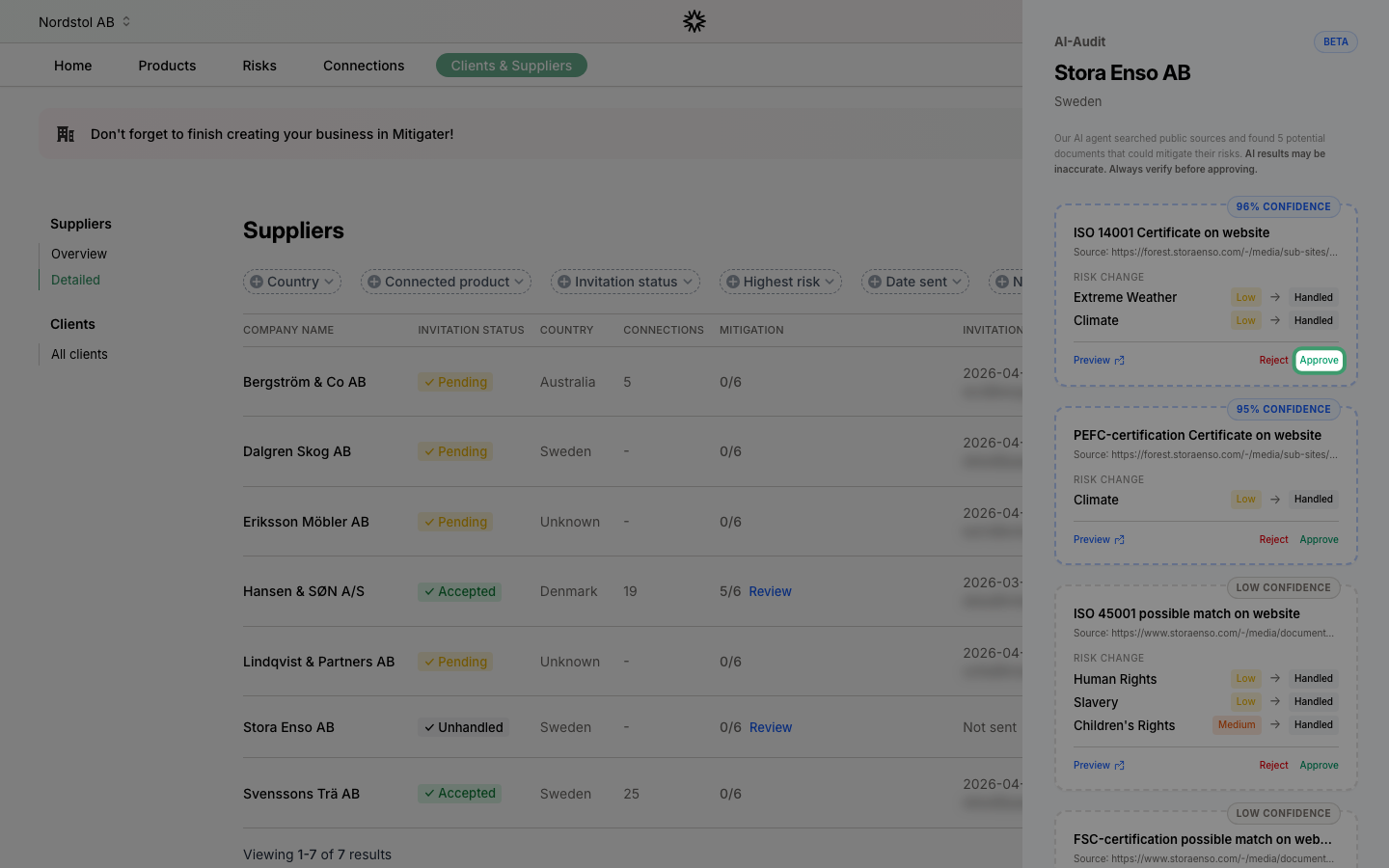
Reject a result
If the source is wrong, outdated, or doesn't actually match this supplier, click Reject. The finding moves into the "rejected" section and no longer counts toward mitigation. You can reconsider a rejection later if needed.
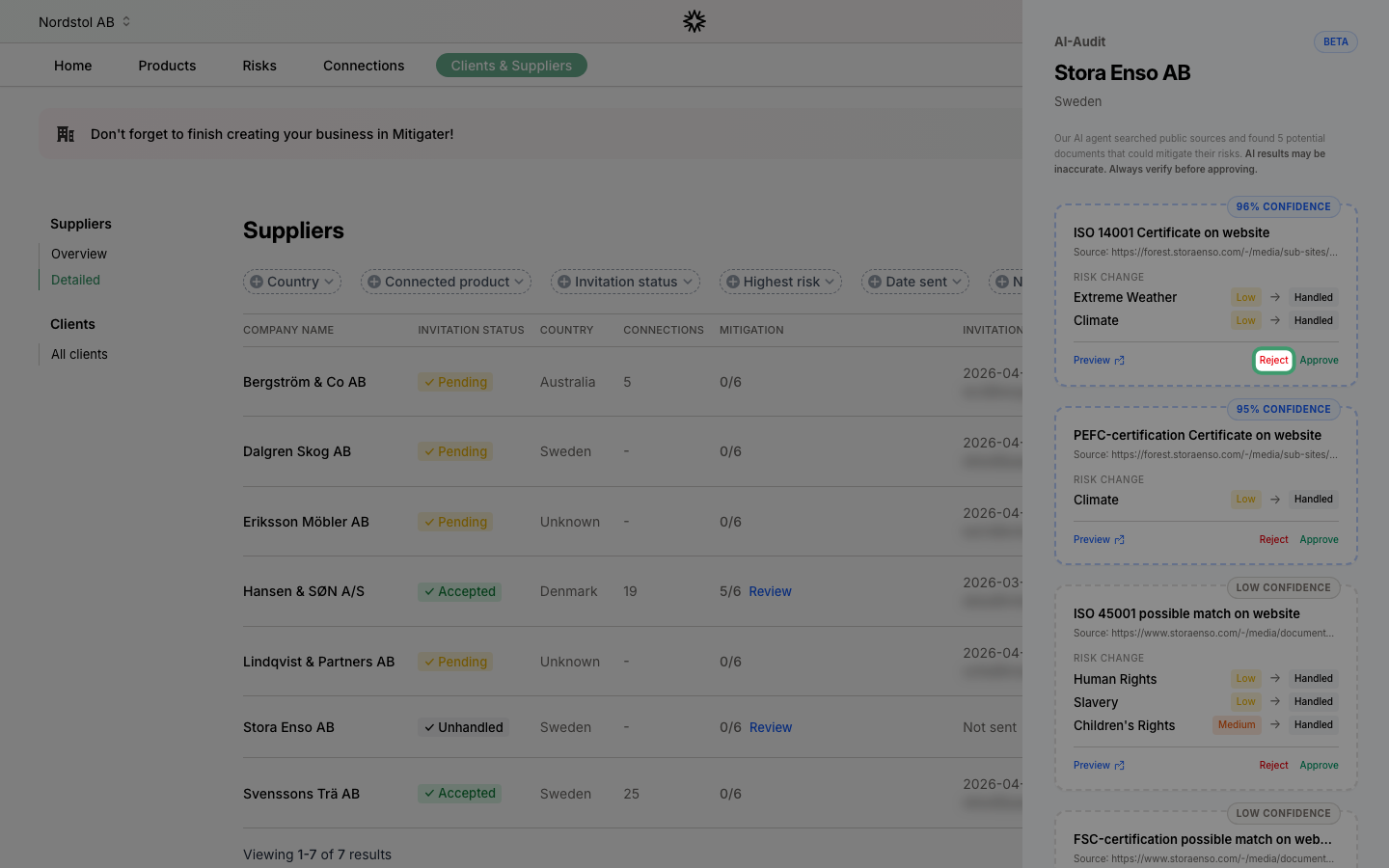 Next step: Learn how to accept supplier-uploaded documents as handled risks.